Family Sharing does not share your photo library. With a shared iCloud+ plan, your photos and documents stay private. Your photos reach your family in 3 other ways: a Shared Library, a Shared Album or another device on your Apple Account.
Shared Library
With an iCloud Shared Photo Library, you can share photos with up to 5 other people. Each photo that you add to it is visible to all of them, and they can edit and delete it. If Sharing from Camera is on, new Camera photos can go there automatically. This happens when you are near the other people, or at home.
To stop this, leave the Shared Library. Check what is in it before you leave, because you choose what to copy out.
Stay signed in to iCloud, with iCloud Photos on, until the process ends.
- Open Settings, tap Apps, then tap Photos. On iOS 17 or earlier, open Settings, then tap Photos.
- Tap Shared Library, then tap Leave Shared Library.
- Copy everything to your Personal Library, or only what you added.
- Tap Leave Shared Library again.
Shared Album: remove a person or delete the album
A Shared Album shares less than a Shared Library. You can choose the photos and videos that you add to a shared album. Everyone invited to the album sees them, and they can also save the shared photos into their own library. If you let them, they can also add their own photos.
Only the people you invite will see a Shared Album. You find your albums under Collections in Photos.
- To remove one person. Open the album that you made. On iOS 27 or later, tap Manage Shared Album, tap the person, then tap Remove Participant. On iOS 26, tap More, tap the album name, tap the person, then tap Remove Subscriber.
- To delete the whole shared album. Delete it. Apple says that this permanently deletes all its photos. Photos that someone saved to their own library stay there.
A family device on your Apple Account shows your photos
This way needs no sharing setting at all. iCloud Photos keeps every photo that you take in iCloud. Each device that is signed in to your Apple Account shows that library. If a relative’s iPad or Mac uses your Apple Account with iCloud Photos on, your photos appear on it too. To stop this, remove the device from your account.
- Open Settings and tap your name.
- Scroll to the device list and tap the device that you do not want.
- Tap Remove from Account and confirm.
You can also turn off iCloud Photos on that device. Choose Download Photos & Videos first, so you keep your own copy. The guide on stopping iCloud Photos from syncing to other devices has the steps.
Your private photos can still be shared by mistake
Each setting above controls who sees your photos in Photos. A private photo stays in your library with all your other photos. You can add it to a Shared Album by mistake, and the next device that signs in to your Apple Account shows it.
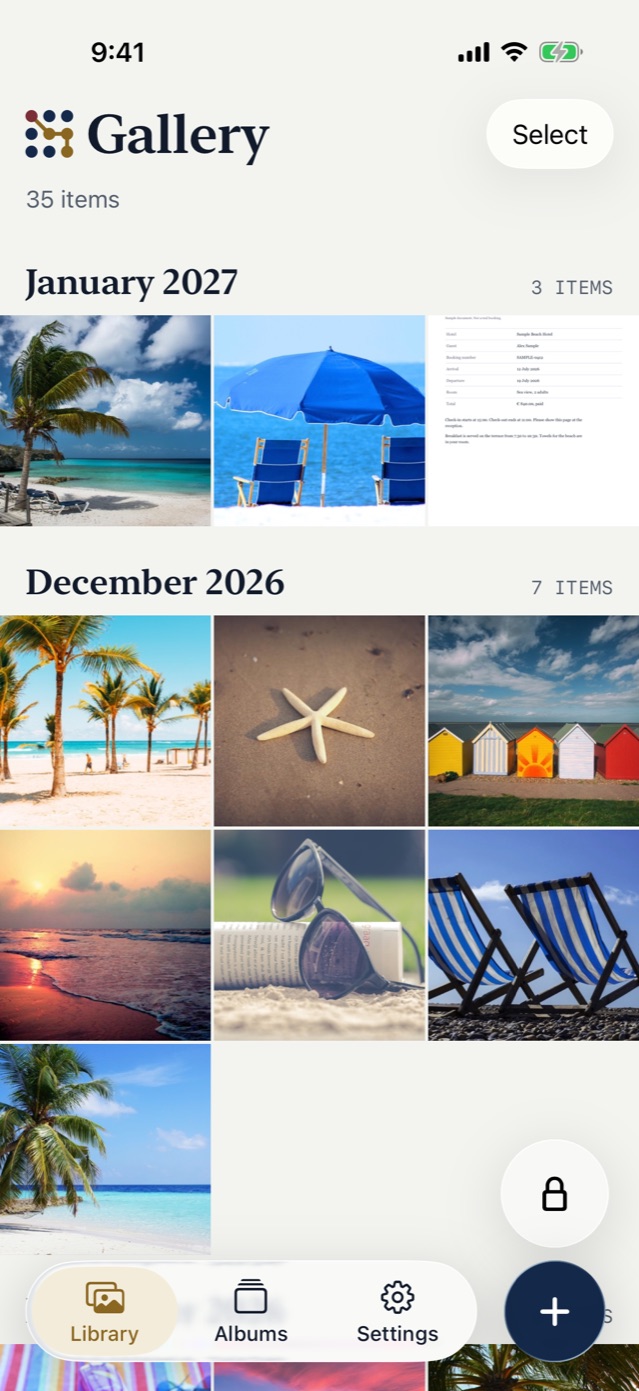
These settings cannot reach a photo if it is not in Photos. Vault9 is an iPhone app that helps you solve your issues about your private photos, videos and documents using in a photo vault, apart from Photos.
You can import the photo into a Vault9 vault and delete the original in Photos yourself, so your photos are safe from accidental sharing. With iCloud Photos on, that deletion also removes the photo from your other devices. Empty Recently Deleted too.
Sources
- Apple Support: How to use iCloud Shared Photo Library
- Apple Support: Leave iCloud Shared Photo Library
- Apple Support: How to use Shared Albums in Photos
- Apple Support: Set up and use iCloud Photos
- Apple Support: Review devices signed in to your Apple Account
- Apple Support: Share iCloud+ with your Family Sharing group
- Apple Support: How to turn off iCloud Photos
- Apple Support: Delete photos on your iPhone or iPad