No. Family Sharing alone does not give your family your photo library. Apple says that with a shared iCloud+ plan, “your photos, documents, and other information stay private”. But 3 other settings can show your photos to your family. Each check below takes a few minutes, so let’s go through them now.
A device signed in to your Apple Account
Does anyone else use your Apple Account on their iPhone, iPad or Mac? If they do, and iCloud Photos is on for that device, they see your photos too. That is because the device is tied to your photo library. To stop it, remove the device from your account. Photos on the family iPad tells more about this case or you can do these simple steps too:
- Open Settings and tap your name.
- Scroll to the list of devices.
- Tap a device you do not recognize or do not control.
- Tap Remove from Account and confirm.
A removed device loses access to iCloud and other Apple services. But if it is still signed in, it can show up in the list again. To be sure that it stays out, sign out of your Apple Account on that device.
The other 2 settings work in a different way. They share your photos with other people, on their own devices.
A Shared Photo Library
An iCloud Shared Photo Library is shared by you and up to 5 other people. All of them can add, edit and delete content. So check who is in the library, and which photos go into it.
- Open Settings, then Apps, then Photos, then Shared Library. On iOS 17 or earlier, open Settings, then Photos.
- Look at who is in the library.
- Look at Sharing from Camera. Apple says that the camera can send new photos to the Shared Library when you are near other participants, or at home.
Next, look at the photos themselves. In Photos you can view the Personal Library, the Shared Library, or both. Switch views to find private photos that landed in the shared one. If you want to leave the Shared Library, read how to stop sharing photos with family.
A Shared Album
The last place to check is your Shared Albums. Open Photos, tap Collections and scroll down to Shared Albums. Open each album and look at the people in it. If you made the album and shared it to others, you can remove the sharing from other people, see how to do it in Removing someone from a Shared Album, it has the necessary steps.
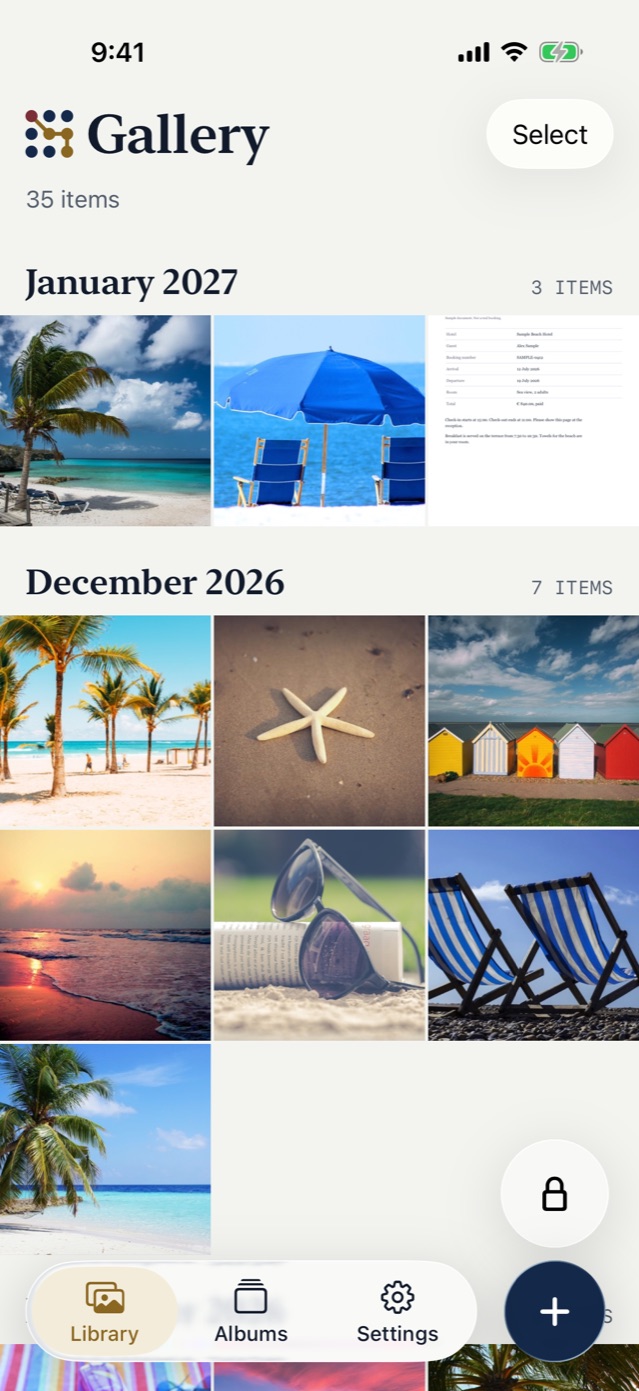
None of the 3 settings can show a photo in Vault9
All 3 places above show photos from your Photos library. A photo that sits only in Vault9 is not in that library, so these settings cannot show it.
To move a photo from Photos into Vault9:
- Import it from Photos into Vault9.
- Delete the original in Photos yourself. Vault9 never deletes anything in Photos.
- Open Recently Deleted in Photos and delete it there too. Items stay there for 30 days.