Backup & a new iPhone
Import & export
Last updated
Your files go in, and come back out the same.
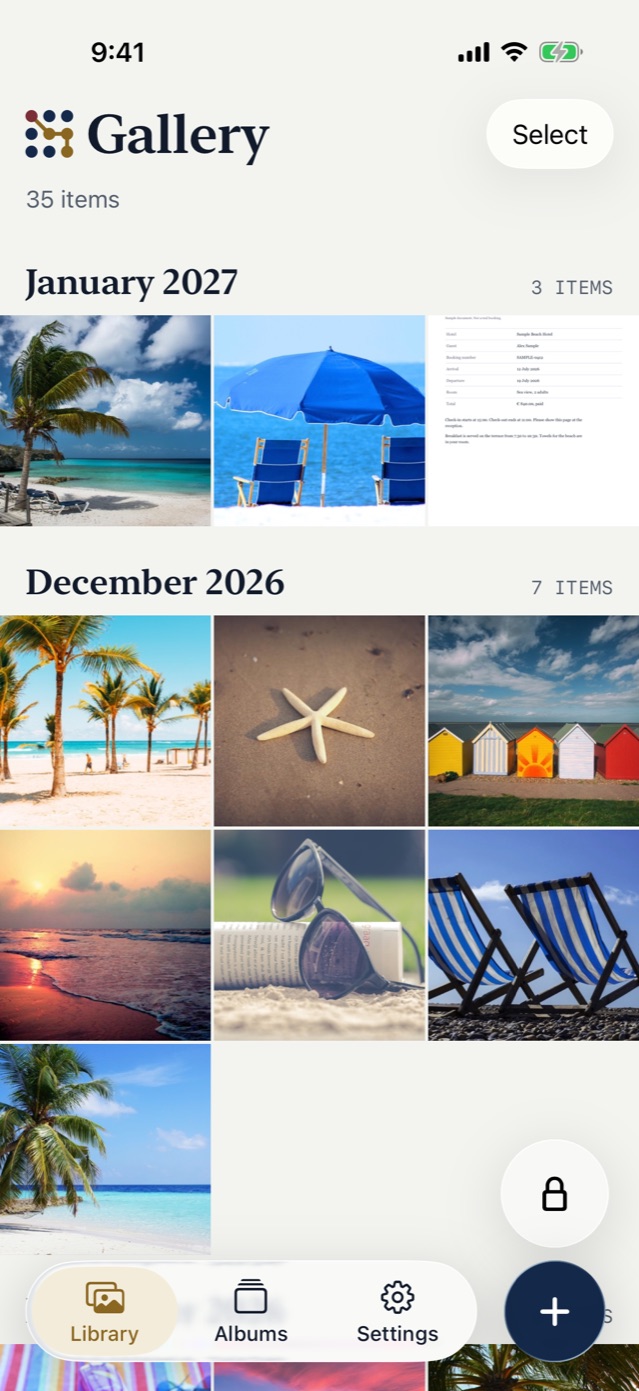
Add photos and videos from Photos, and files from Files. The app needs no access to your Photos library, and it keeps the original file, encrypted, with no re-compression. You can take an item out at any time with the iOS share sheet.
Explore this featureHow it works
Import in 3 steps
- Tap Import.
- Choose Photos and videos for the Photos app, or Files for documents and other files.
- Choose the items.
The app needs no access to your Photos library. iOS shows its own picker, and you choose what goes into the vault.
Then delete the originals yourself
The app never deletes or changes anything in Photos. So after an import, each photo is in 2 places. It sounds like extra work, but the order protects you:
- Open the new items in the vault and check them.
- Delete the originals in Photos.
- Empty Recently Deleted in Photos.
Until step 3, a copy is still on your iPhone, outside the vault. The camera in the app leaves no original to delete.
What the vault keeps
- The file in its current format. An import from Photos asks iOS for the file as it is, not a converted copy.
- No re-compression. The vault keeps the original bytes, encrypted.
- The metadata. An import does not remove location or other metadata. A photo that holds the place where it was taken keeps that place in the vault.
If a photo is only in iCloud, for example with “Optimize iPhone Storage”, the import downloads it first.
A hidden photo needs one more step
The photo picker does not show the Hidden album of Photos. To import a hidden photo, unhide it in Photos first, import it, then delete the original.
If the app locks during an import
An import that runs when the app locks continues in the background for as long as iOS allows. If it cannot finish, the app asks you to import the item again.
Take items out
Export an item to the iOS share sheet at any time. Then save it to Files, send it, or open it in another app. With Select, you can share several items at once.
The app decrypts the item to a temporary file for the share sheet, and deletes that file when the share sheet closes. You get the same file that you imported.
There is no vault archive: you cannot export the whole vault as one file. To move the vault to a new iPhone, use the iCloud backup.
Good to know
- Deleting the app deletes the vault on that iPhone. You get it back only from the iCloud backup.
- If we stop work on the app, it still works on your iPhone, because it needs no servers of ours. You can still export your items.
- A copy that you export and save in another app is outside the vault. The vault does not protect that copy.
Common questions
Can I take my photos out again?
Yes. You export them to the iOS share sheet.
Does Vault9 remove location data from imported photos?
No. An import does not remove location or other metadata. The vault keeps the file that iOS gives to the app, encrypted.
Can I export the whole vault as one file?
No. The app has no vault archive. You export items to the iOS share sheet.
Related articles
See all featuresiPhone open. Photos locked.
Lock your photos & videos.
Scan with your iPhone camera to download