Organize your vault
Albums & favorites
Last updated
Sort your vault your way.
Make your own albums, mark favorites with a heart, and select many items at once. Built-in albums sort your photos, videos and documents for you. An item can be in any number of albums, and an album holds no copy of it.
Explore this featureHow it works
2 kinds of albums
- Your own albums. You make one for each collection: a trip, a scan of each ID card, the photos for one person. An item can be in any number of albums, and an album holds no copy of it.
- Built-in albums. Recently Added, Favorites, Photos, Videos and Documents fill themselves. You do not sort anything by hand.
You find all of them in the Albums tab.
Put items into an album
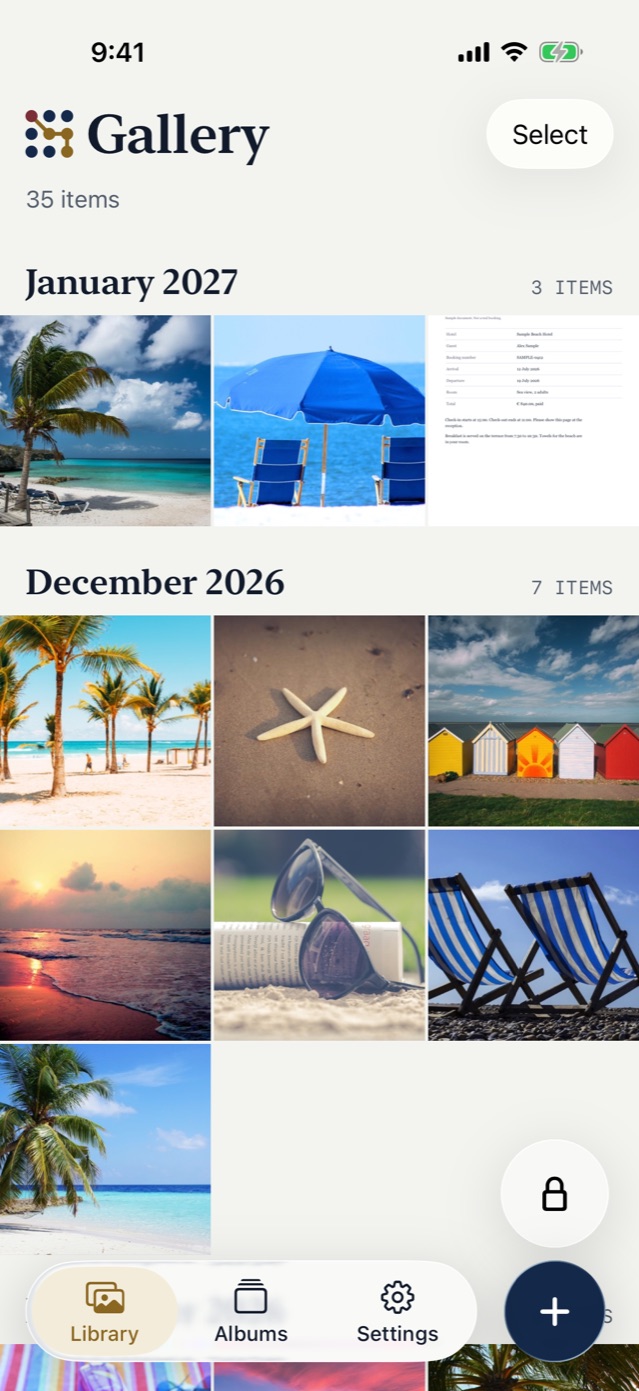
- On the Gallery, tap Select.
- Tap the items that you want.
- Tap Add to Album, then choose the album.
There is a faster way for new photos. Open one of your own albums and tap Camera there. Each photo or video that you take joins that album.
Mark favorites with a heart
Tap Favorite on an item, and the heart puts it into the Favorites album. Unfavorite takes it out again.
Change many items at once
With Select, you choose several items, then you do one action for all of them:
- share them through the iOS share sheet
- add them to an album
- make them favorites
- remove them from an album
- delete them
Remove is not delete
These 2 actions look close, but they do very different things.
Remove from Album takes an item out of one album. The item stays in the vault and in its other albums.
Delete removes the item from the vault. The app asks you to confirm, then deletes it for good, also from the iCloud backup. There is no Recently Deleted album to get it back from. Our advice: when you clean up an album, use Remove from Album, and delete only what you want gone from everywhere.
Look through your items
Open an item to see it. Swipe to the next or the previous item. Pinch or double tap to zoom into a photo. You can also rename an item, so that a scan called by a number gets a name that you can find later.
Good to know
- Settings → Storage shows the storage that the vault uses on your iPhone, per type, and what is backed up.
- The vault locks after 5 minutes without a touch. In Settings, you can set Auto-lock to off, 1, 5 or 15 minutes.
- When you leave the app, the app switcher shows only a plain cover with the logo, not your photos.
Common questions
Does a photo in two albums use twice the space?
No. An album holds no copy of the item. An item can be in any number of albums.
Can I edit a photo in the vault?
No. The app has no photo editor. It can rename an item and change its albums.
Related articles
See all featuresiPhone open. Photos locked.
Lock your photos & videos.
Scan with your iPhone camera to download