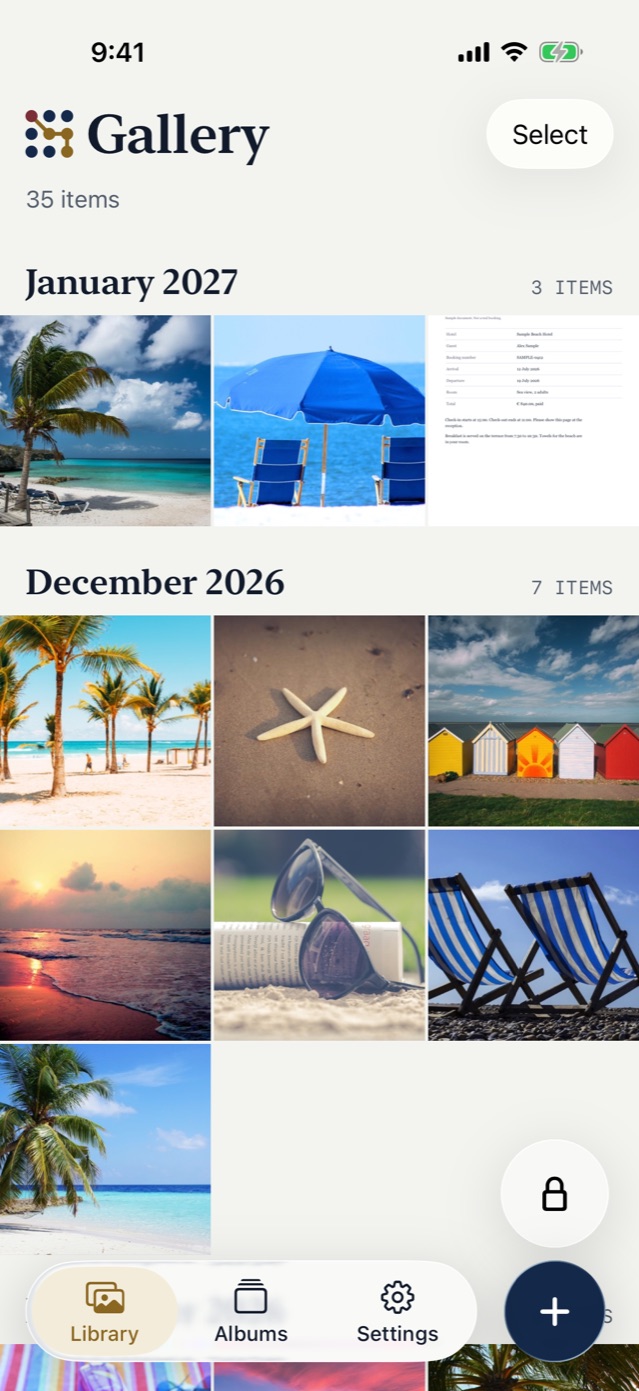
iPhone has no secret folder in the Files app, and no secure folder or locked folder either. For photos and videos, the built-in secret place is the Hidden album in Photos. A vault app covers documents, and it gives photos a lock that your passcode does not open.
The Hidden album, for photos and videos
- Open Photos.
- Touch and hold a photo or video, tap Hide, and confirm.
- To find it again, tap Collections, scroll to Utilities, and tap Hidden.
Apple locks the album by default. Face ID, Touch ID or your passcode opens it (Apple: Delete or hide photos and videos). To take the album out of view, open Settings, tap Apps, tap Photos, and turn off Show Hidden Album.
That is the whole feature. It holds photos and videos only, and your passcode is its key.
When the passcode is the problem
Choose a vault if someone else knows your passcode, or if you need to hide a document. In Vault9 the vault opens with your pattern or passphrase and your Secret Key, or Face ID if you turn it on. Your phone passcode does not open it.
Vault9 is not a folder tree. You make albums, and one item can sit in several albums at once. An album holds no copy of the item.
Set up the vault
- Choose a pattern or a passphrase. A pattern needs at least 8 dots and 3 changes of direction. A passphrase needs at least 12 characters.
- Import photos and videos from the Photos app, or documents from the Files app.
- Delete the originals yourself, then empty Recently Deleted in Photos.
- Save or print your Restore Kit from the Gallery, and write your pattern or passphrase on it.
Step 4 matters most. If you forget your pattern and it is not on your kit, Vault9 cannot reset it, and we cannot open the vault for you.
What the vault does not do
Vault9 has no decoy vault and no hidden second vault. A wrong pattern shows an error. It also does not protect a vault that is open on an unlocked phone. For other ways to lock files, see how to password-protect a folder.