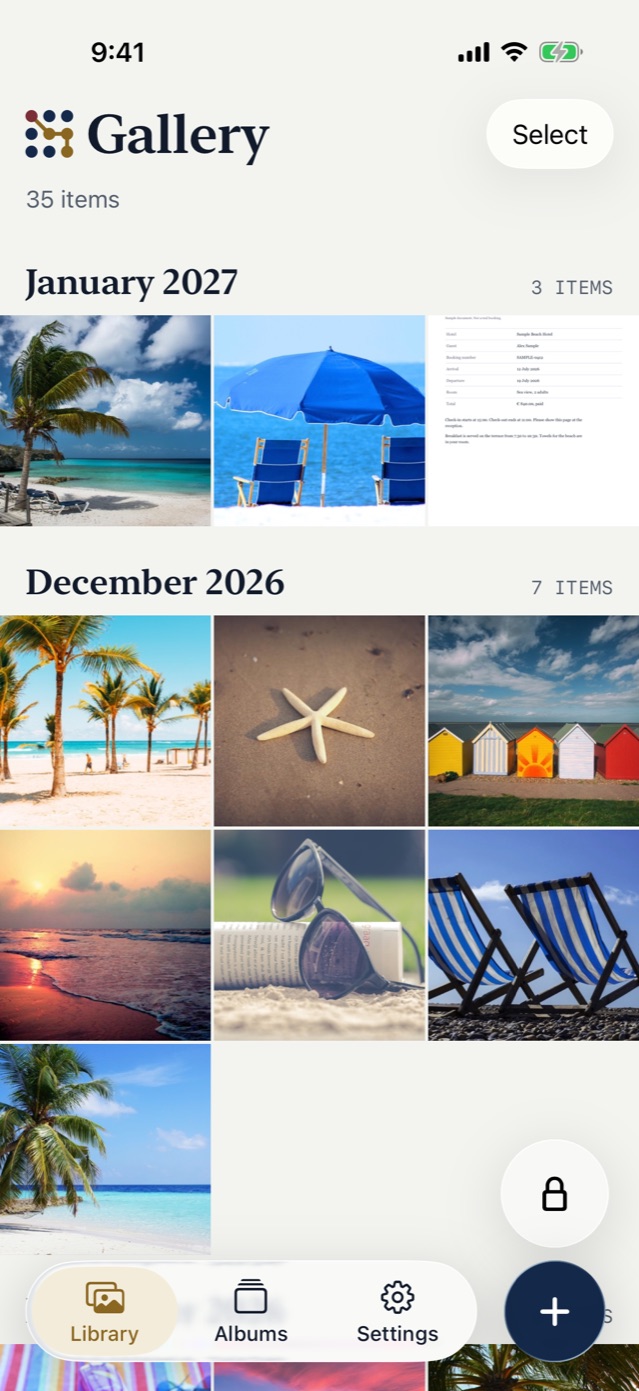
You will find clues, not proof. Three places can show that someone was in your Photos app: Recently Deleted, the Hidden album and your Screen Time report. One clue alone means little. Two or three together mean more.
Recently Deleted shows what someone removed
Open Photos, tap Collections, swipe up, and tap Recently Deleted under Utilities. Photos stay there for 30 days. Apple says the album opens with Face ID, Touch ID or your passcode.
Look for a photo that you did not delete. If one is there, someone removed it, or you did and forgot.
The Hidden album shows what someone moved
Open Hidden in the same list. Look for photos that you never hid. Look also for a photo that you hid and cannot find now.
Cannot find the album at all? Someone may have turned it off. Go to Settings, tap Apps, tap Photos, and check Show Hidden Album.
Screen Time helps only if it was already on
Screen Time lists your most used apps and how often you picked up the iPhone. Open Settings, tap Screen Time, tap Daily Average, then tap Day or Week. Look for Photos use at an hour when the phone was not in your hands.
If Screen Time was off, there is nothing to read. Apple says the weekly report starts only after you turn it on.
Why the clues stop short
None of these views names a person. They show that something changed.
Apple locks both the Hidden album and the Recently Deleted album by default, and your passcode opens them (Apple: Delete or hide photos and videos). So whoever has your passcode can open both. Someone who picks up the phone while it is unlocked can open all of Photos.
If a person knows your passcode, change it. For the Hidden album alone, see who can open it and how to tell.
A person who tries to guess your pattern or passphrase gets 4 wrong tries with no wait. From the 5th wrong try, the app makes them wait: 1 minute, then 2, 4, 8, 16, 32 and at most 60 minutes. The app never deletes the vault after wrong tries.
You move a photo in with Import, then delete the original in Photos yourself, and delete it from Recently Deleted too. Vault9 does not protect a vault that is open on an unlocked phone. It locks when the app goes to the background, when you lock it, or after the Auto-lock time.