You recorded a clip you’d rather not see sitting in your camera roll. Maybe it’s a medical video for a doctor, a copy of a work document, or something personal you filmed for one person. You tap Hide, the thumbnail vanishes, and it feels solved.
It isn’t. Hiding a video changes what people see when they scroll. It doesn’t change who can open the file. The same passcode that opens your phone opens the album, and apps you’ve given photo access can still reach what’s inside.
This guide goes method by method. Each one gets tested against the ways a video leaks: app permissions, exported copies, and someone who knows your passcode. That way you can decide how to hide videos on iPhone with your eyes open.
Pick the Right Way to Hide a Video
Three methods get recommended for keeping a video out of sight. On the surface they look alike. Once another person picks up your phone, they behave nothing alike.
| Method | Who can open it | Leaves the Photos library? | Main weakness |
|---|---|---|---|
| Hidden album in Photos | Anyone with Face ID, Touch ID or the iPhone passcode | No, it stays in the library and its backups | Anyone who knows the passcode can open it |
| Hidden album with Show Hidden Album off | Same as above, and the album is hidden from the Photos app | No, it stays in the library and its backups | Still uses the iPhone passcode, and apps with full photo access may reach hidden items |
| Vault9 private vault | Only someone with the Vault9 pattern or passphrase | Yes, it is kept in its own encrypted vault | If the pattern is forgotten and not on the Emergency Kit, the vault cannot be reset |
The second row surprises people. Apple has locked the Hidden album by default since iOS 16 shipped in 2022, and the Apple support page on locked Hidden and Recently Deleted albums explains the setting that changes it. That lock runs on your existing Face ID, Touch ID or passcode. There’s no separate Photos password. So it stops a snooper and opens for anyone who already types your passcode to check a message.
The quick test: would the person you’re hiding this from know your iPhone passcode? If yes, the Hidden album is not the tool for that video.
Now the verdicts by situation. For a clip you don’t want in a family slideshow or a screen-share, the Hidden album is right, and it takes seconds. For a clip where even the album’s presence is a problem, turn Show Hidden Album off and the album disappears from the Photos interface. For a clip that must stay shut to someone who knows your passcode, only a separate lock works, and that means a vault with its own credential.
If you want the fuller side-by-side on Apple’s album against a standalone vault, the guide to the iPhone hidden album versus a photo vault app covers the trade-offs in more depth.
That’s the whole decision. Under a minute, and you know which row you’re in.
How to Hide a Video in Photos Step by Step
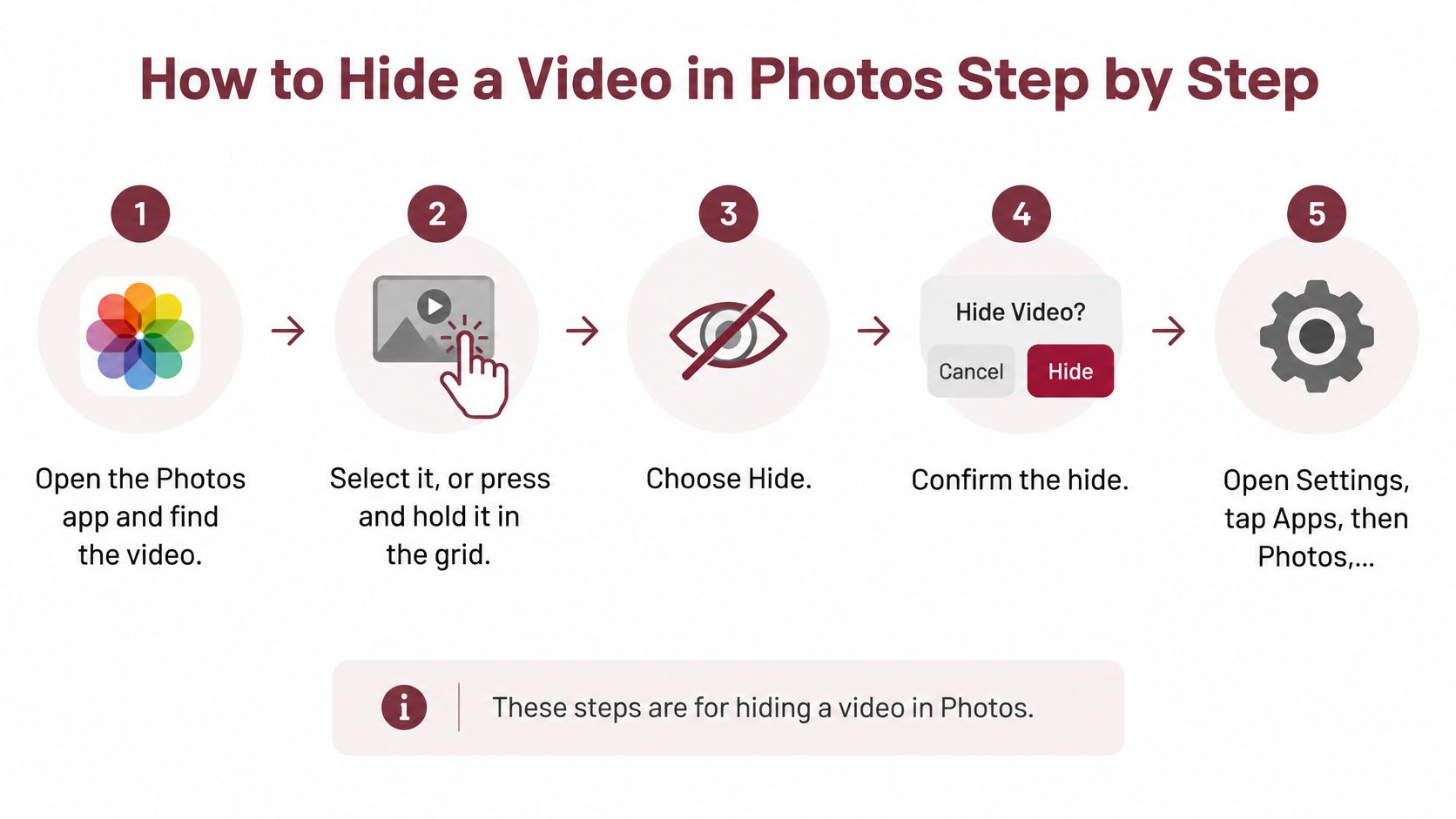
The built-in route is quick and reversible. Here’s the exact sequence.
- Open Photos and find the video. Use the Videos album under Media Types if the grid is crowded.
- Select it, or press and hold it in the grid. A long press opens the shortcut menu without any hunting.
- Choose Hide. On the full-screen player it sits under the More (three dots) menu.
- Confirm the hide. The video leaves the main Library, other albums and the Photos widget, and lands inside Hidden.
- Open Settings, tap Apps, then Photos, and turn off Show Hidden Album. This removes the album from the Photos interface, so a casual browser never sees the entry point.
The fifth step is a second privacy step, not a repeat of the first. Apple’s own support documentation on the Photos Hidden album treats them as separate: one moves the video out of ordinary views, the other takes the album off the screen. Apple added the album toggle back in iOS 14 and later.
Here’s the whole flow at a glance.
The slip many users make is stopping after step 4 while keeping a copy elsewhere. You hid the video in Photos, but the version you AirDropped to a friend still sits in Messages, and the export you needed for a form is in Files. Hiding touches the Photos library and nothing else. Check Messages attachments, the Files app’s Downloads folder, WhatsApp and any cloud drive before you call it done.
The other limit is structural. Hiding changes visibility inside Photos. It doesn’t create a private container. The video stays part of the phone’s Photos library and its backup ecosystem, which is exactly why a locked album is a good screen against glances and a poor answer to “can someone who knows my passcode get this?”
Quick check before you move on: open the Library, scroll a little. The video should be gone from the grid. Then open Hidden under Utilities and confirm it’s there and that the album asks for Face ID, Touch ID or your passcode.
Lock, Find and Unhide Your Hidden Videos
Two things send people back to this album: they want to watch the video again, or they can’t remember where it went. Both use the same path.
- Open Photos and tap Collections.
- Scroll to Utilities and select Hidden.
- Tap View Album, then authenticate with Face ID, Touch ID or the passcode.
- Select the video and choose Unhide to return it to the Library.
Apple’s iPhone user guide for Photos describes that route exactly, and it spells out the part worth pausing on. The album opens after the phone’s own check, using the phone’s own authentication. It is a door with your house key, not a separate lock.
A hidden video stays hidden until you unhide or delete it. It won’t time out and reappear, the way a deleted video waits in Recently Deleted before permanent removal.
Three checks keep this working the way you expect.
- Confirm the lock is still on. Settings > Apps > Photos, and keep Use Face ID, Use Touch ID or Use Passcode switched on for Hidden and Recently Deleted.
- Decide about the album icon. If Show Hidden Album is on, anyone scrolling Photos sees a Hidden entry. Off is tighter; you’ll need this access path when you want the video back.
- Check shared albums. A video you added to a shared album lives in that album’s own space. Hiding it in your library doesn’t pull it out of the shared one.
A scenario that catches real people: a parent hides a school clip on the family iPhone, then can’t find it a week later and assumes it was deleted. Nothing was lost. Utilities, then Hidden, then authenticate, and there it is. Same relief applies after a handoff or a repair.
What this lock will not do is survive someone who knows the passcode, and it won’t survive an app that’s been given full access to the library. Those are the two gaps to close, which brings us to permissions and to vaults.
How to Store Videos in a Private Vault
A separate vault earns its place in two cases. You need the video hidden even while your phone is accessible and sitting on a table. Or you want the clip out of the Photos library entirely, so no export, backup or library sync carries it along.
Setting up Vault9 takes about five minutes.
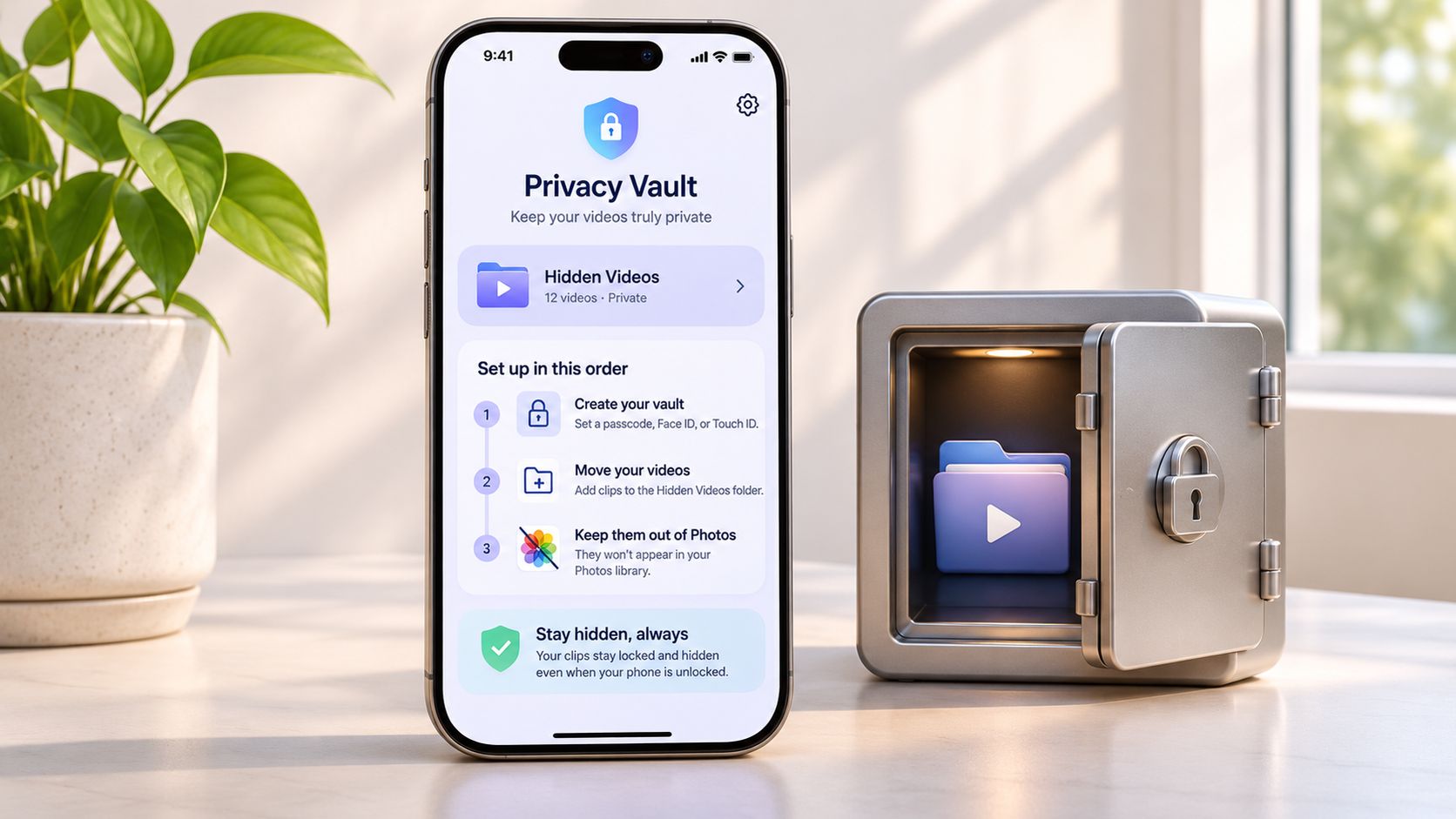
- Install Vault9 and open it. The app needs iOS 26 or later, and there’s no account and no sign-up.
- Choose your code. Draw a pattern through at least 8 dots on the 6 by 6 grid, with 12 to 15 dots recommended, or type a passphrase of at least 12 characters. Four or more random words are recommended, and the app can generate a five-word one for you. A long passphrase is stronger than a pattern.
- Import the video from Photos, then delete the original in Photos and empty Recently Deleted. Vault9 never changes your Photos library, so that cleanup is yours to do.
- Make your Emergency Kit. Save or print the one-page PDF and write your pattern or passphrase on it by hand. The app never prints them for you.
- Run the kit test in Settings, so you know the paper matches the vault.
The kit matters because of how the encryption is split. Your Secret Key lives on the iPhone in the Keychain, set to this device only. The vault is kept out of the iPhone backup, so restoring a backup or using Quick Start on a new phone won’t bring your videos across. The kit is the way back.
For how the two-key model works under the hood, the explainer on how photo vault apps work is worth ten minutes before you commit.
A forgotten pattern that isn’t written on the kit cannot be reset. That’s not a sales line, it’s the trade-off for encryption nobody else holds keys to. You can export any video to the iOS share sheet whenever you need it, so a vault isn’t a one-way door.
Close the Leaks and Choose Your Method
The belief that hiding ends the story is the biggest mistake in this topic. Apple’s own Photos and privacy data page says an app granted full photo access can reach hidden photos and videos, even with the Hidden album locked. The risk depends on permissions, not on whether you tapped Hide.
| Leak point | Why it happens | Fix |
|---|---|---|
| Exported copy in Files or Messages | Hiding leaves the copy in place | Delete the copy, then empty Recently Deleted |
| Third-party app with full photo access | The app can reach hidden media | Change the app to limited or no photo access |
| Passcode known to someone else | The Hidden album opens with the passcode | Change the passcode or move the video into a separate vault |
| Unlocked phone in someone else’s hands | Open photos and apps are visible | Turn on auto-lock and lock the phone when you step away |
| Malware on the iPhone | Neither hiding nor a vault lock stops it | Keep iOS updated and install only trusted apps |
Fixing these takes about ten minutes.
- Audit photo access. Settings > Privacy & Security > Photos, then set each app to Limited Access or None. Editing, social and AI apps are the usual offenders, and most work fine with a hand-picked selection.
- Delete stray copies. Clear the exports in Files and the attachments in Messages, then empty Recently Deleted in both apps.
- Turn on auto-lock. Settings > Display & Brightness > Auto-Lock, set to 30 seconds. A phone that locks itself closes most of the casual exposure.
- Change a shared passcode. Settings > Face ID & Passcode > Change Passcode, if a roommate, partner or colleague knows the old one.
Two honest limits belong here too. Vault9 does not protect an open vault, an iPhone that is already open in someone else’s hands, or a phone with malware on it. And if you turn off the iCloud backup, or ignore the warnings that files aren’t backed up, you’re accepting that those files exist only on the iPhone. What happens to hidden photos and iCloud sync is a useful read before you assume a second copy exists somewhere.
Method in one line each: Hidden album for casual privacy. Hidden album with the album icon off for a tidier screen. A vault with its own lock when the person you’re hiding from knows your passcode.
Then do one thing today. Hide a test video, open the Hidden album to confirm the lock, run through your app permissions, and decide whether the file deserves a lock of its own.
Questions That Come Up After You Hide a Video
Does hiding a video delete it or free up space? No. The file stays on the phone and stays in your library backups, so storage doesn’t move. If space is the goal, delete the video instead and empty Recently Deleted, which is a one-way trip.
What if I hand over an iPhone without a passcode? Hiding does nothing here, because the album is a couple of taps away and no authentication stands between the two. Turn on auto-lock and lock the screen before you pass the phone. If you’re lending it for a call, Guided Access pins the phone to a single app until you triple-click to exit.
Can I put a wall in front of the Photos app itself? Screen Time can, roughly. Under App Limits, set a one-minute limit on Photos, then Block at End of Limit. After a minute, Photos asks for the Screen Time passcode. It’s clumsy for daily use and it covers the whole app rather than one clip, but it does add a barrier that isn’t your iPhone passcode.
Does hiding survive a restore or a new phone? The hidden state travels with the Photos library, so it comes back the same way the library does, through iCloud Photos or a computer backup. That’s convenient and it’s also the reason not to think of the Hidden album as storage.
The pattern across all four answers is the same one running through this whole guide. Hiding controls sight. It doesn’t control access.
Vault9 keeps private videos in an encrypted vault on your iPhone, separate from the Photos app, accessed by a pattern or passphrase that your iPhone passcode cannot open. It needs no account and no Vault9 servers, so your clips stay encrypted on your own device and in your own iCloud backup. If the person you’re hiding a video from knows your passcode, visit Vault9 and give that video a lock of its own.