
Yes. Hidden photos sync to iCloud when iCloud Photos is on. Hiding changes where a photo appears, not whether it uploads. The Hidden album lock does not stop syncing.
Table of Contents
- Do Hidden Photos Sync to iCloud?
- How to Check a Missing Hidden Photo
- Hidden Is Not a Separate Backup or Vault
- What Happens When You Hide, Unhide or Delete
- Choose the Right Privacy Setup
Do Hidden Photos Sync to iCloud?
Yes, if iCloud Photos is enabled. Apple’s iPhone guide to hiding photos and videos says a photo hidden on one device is hidden on your other devices when you use iCloud Photos. The photo and its hidden status remain in your synced library.
| Setting | What happens to a hidden photo |
|---|---|
| iCloud Photos on | Appears in Hidden on other devices using the same synced library and on iCloud.com |
| iCloud Photos off | Does not sync through iCloud Photos; it may be included in a device backup |
How to Check a Missing Hidden Photo
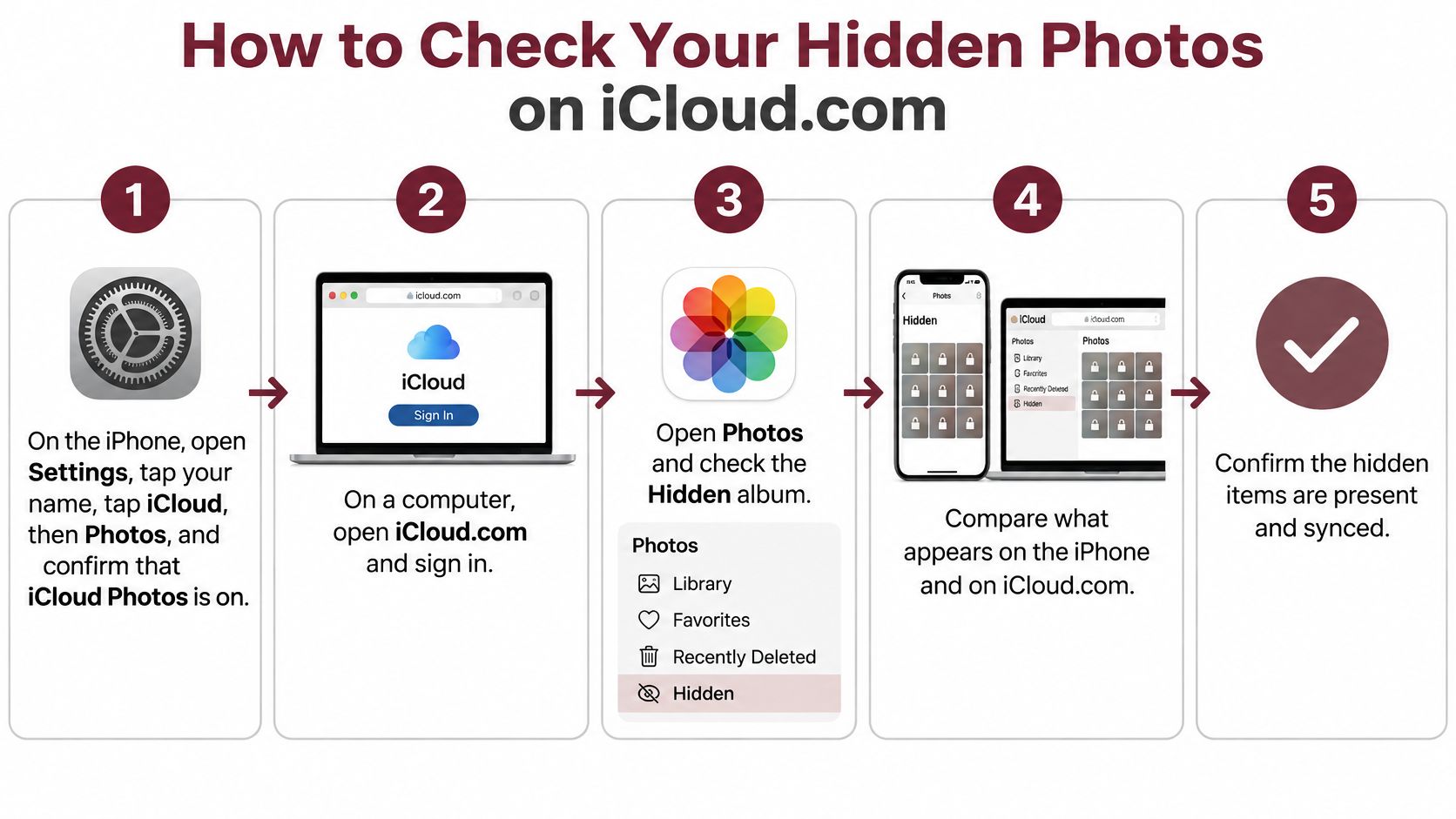
-
On your iPhone, check Settings > your name > iCloud > Photos to see whether iCloud Photos is on.
-
Sign in to iCloud.com with the same Apple Account and open Photos > Hidden. Apple’s iCloud Photos support page explains how to view or unhide items there.
-
If the photo is missing on another device, check that device’s Apple Account, iCloud Photos setting, Hidden album visibility and sync progress. Unlock Hidden with Face ID, Touch ID or the device passcode.
An empty Hidden collection does not prove the photo was deleted. Check the original device before moving or deleting anything.
Hidden Is Not a Separate Backup or Vault
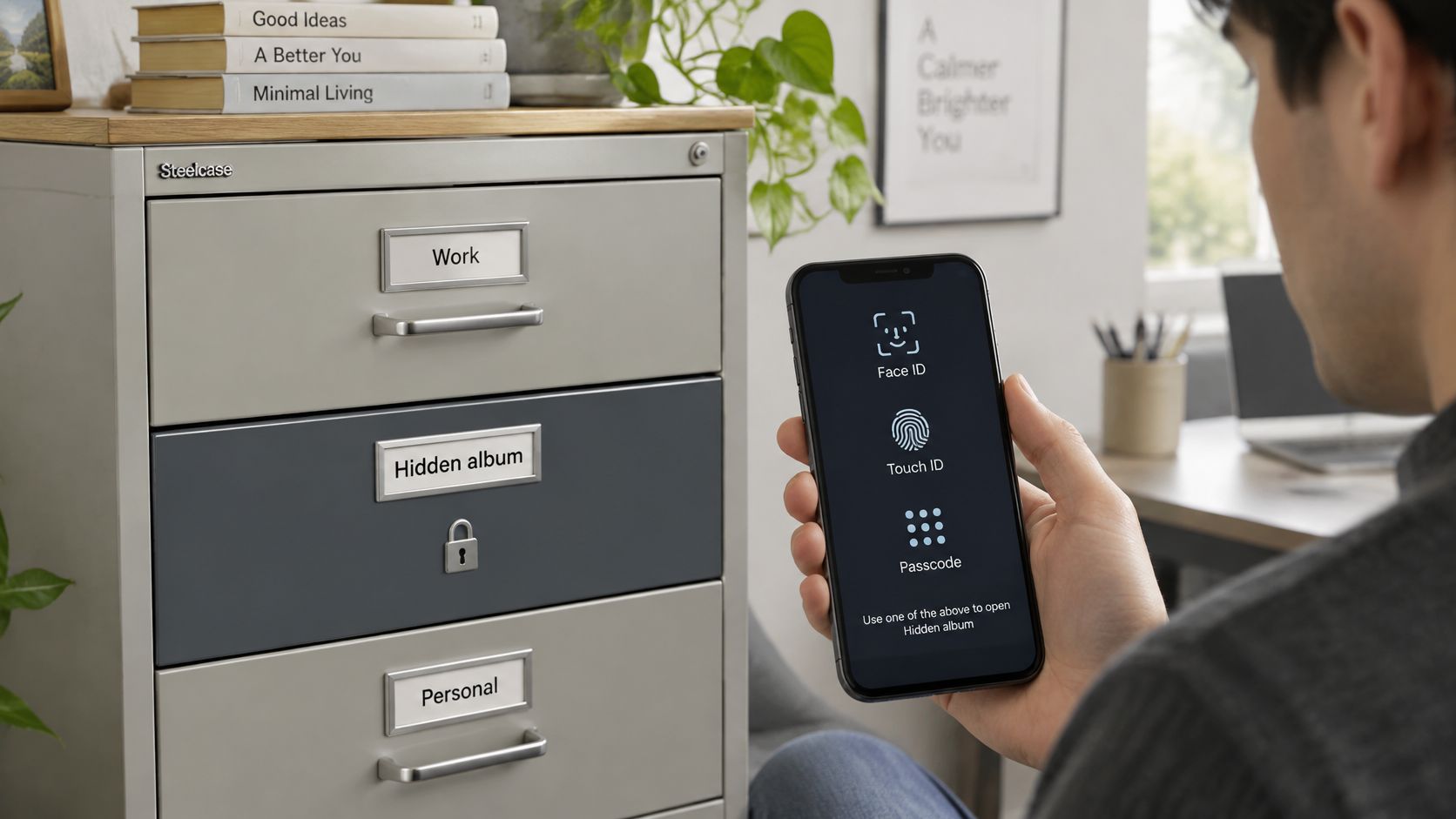
Hidden keeps photos out of casual view and locks album access on a device. It does not prevent an iCloud Photos upload or create a separate encrypted vault. For the storage details, see this guide to iCloud Photos encryption.
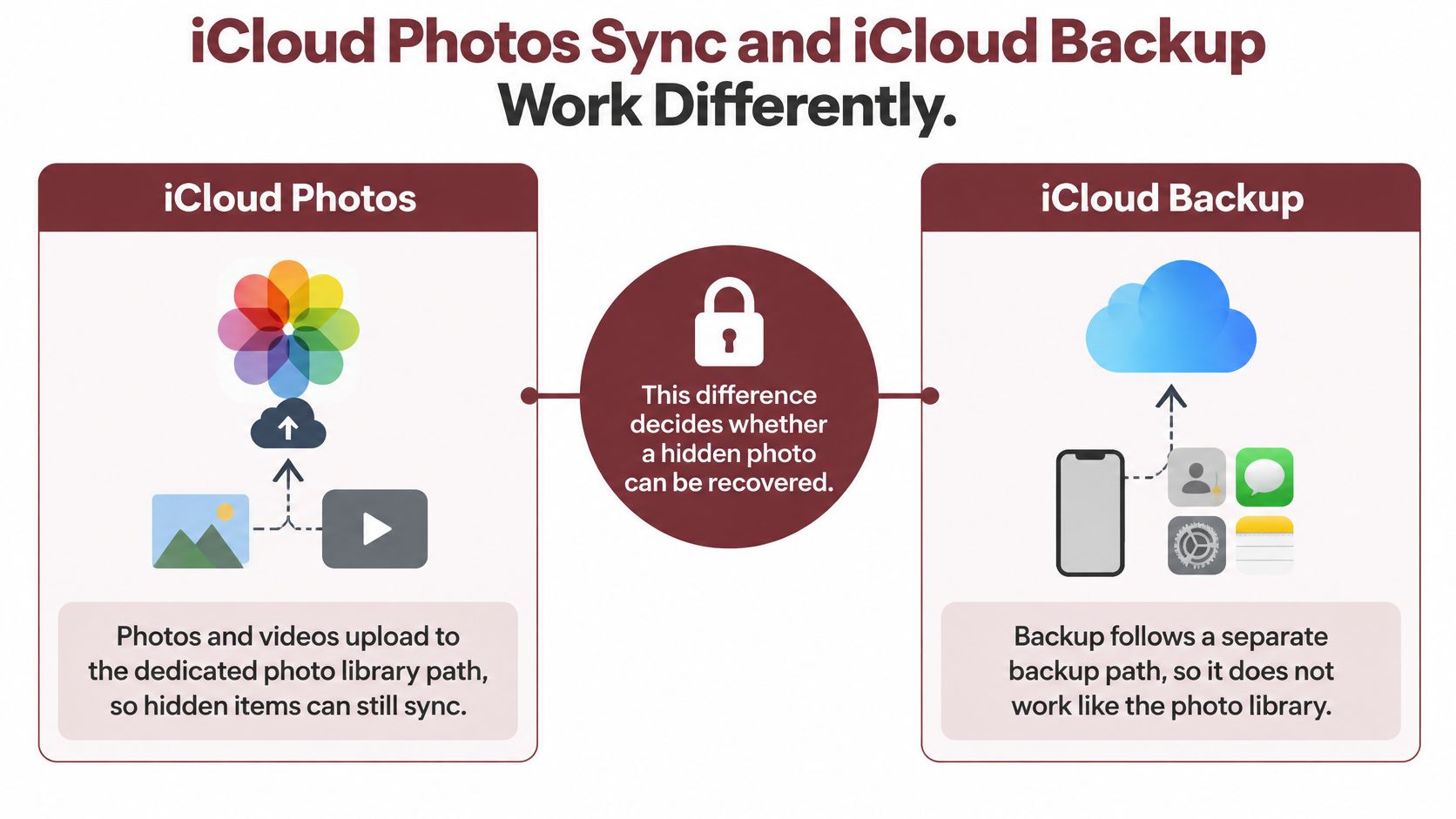
Sync is not a separate backup. With iCloud Photos on, synced photos are not duplicated in the daily iCloud Backup, as Apple’s page on what iCloud Backup includes explains. Deletions sync too. With iCloud Photos off, a device backup may contain photos, but recovery depends on its contents. Before deleting anything you want to keep, verify a separate copy; this guide to iPhone photo backup encryption covers one approach.
What Happens When You Hide, Unhide or Delete
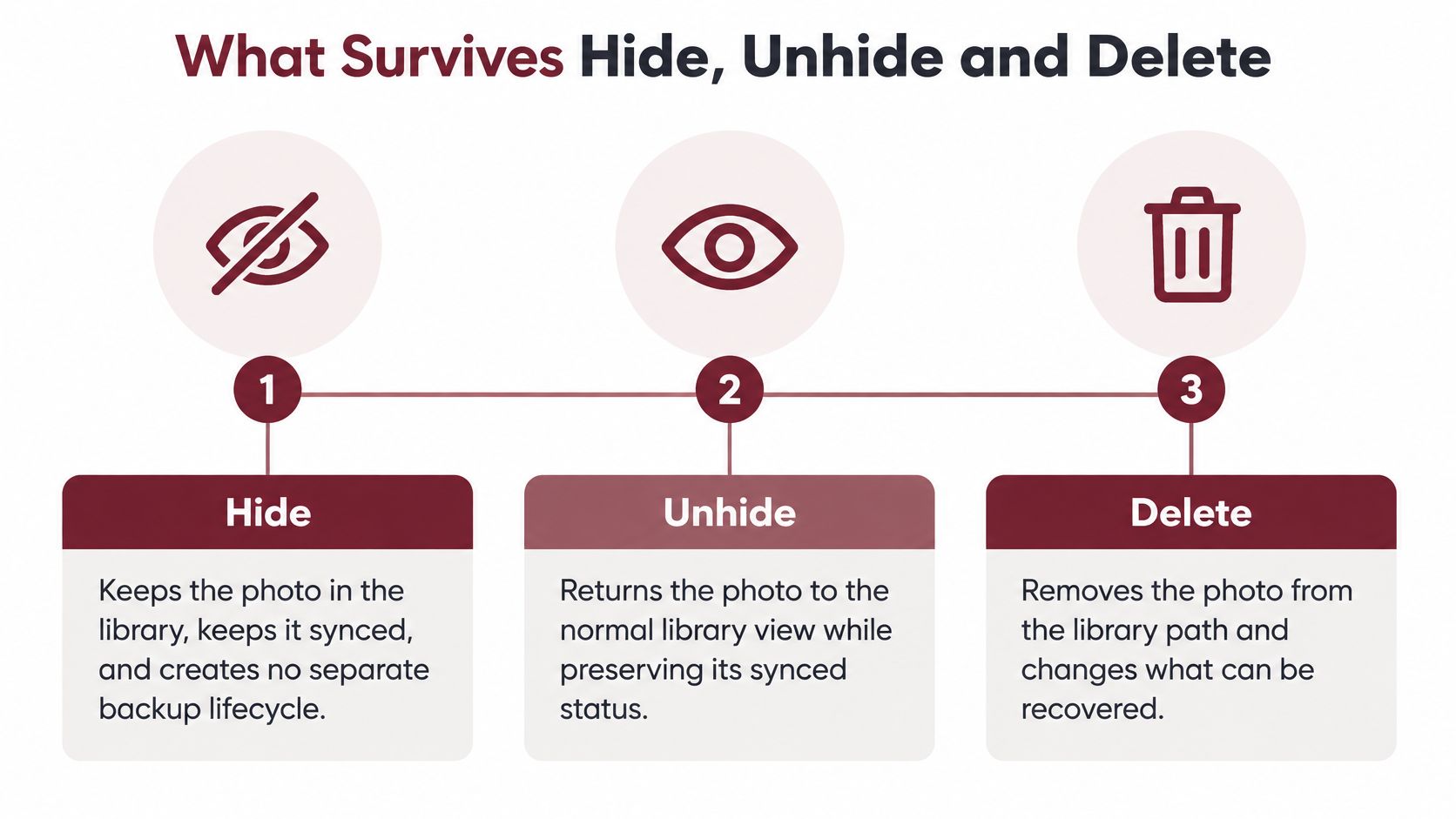
| Action | With iCloud Photos on |
|---|---|
| Hide | Photo stays in the library and appears in Hidden across synced devices |
| Unhide | Photo returns to the normal library view across synced devices |
| Delete | Deletion syncs; the photo moves to Recently Deleted for 30 days before permanent deletion |
A replacement iPhone can receive hidden photos through iCloud Photos. If syncing was off, recovery depends on whether a device backup contains them.
Choose the Right Privacy Setup
If you only want photos out of casual view, Hidden may be enough. If you want them out of iCloud Photos, hiding them in a synced library will not do it. Confirm where your copies are before changing sync settings or deleting originals.
For a separate lock, Vault9 keeps an encrypted copy of imported photos, videos and documents in a vault separate from Photos, protected by its own pattern or passphrase. Importing does not delete the Photos original; you must also remove it from Recently Deleted if you do not want it there. Vault9 keeps an encrypted backup in your iCloud storage rather than syncing the vault across multiple iPhones. Deleting the app deletes the device’s vault, so check its recovery process first.
If you share an Apple Account, hidden photos may appear on other signed-in devices. See private photos on a shared Apple ID and Vault9 for more on that setup and the vault.
Bottom line: Hidden changes visibility, not iCloud Photos syncing or backup behavior.