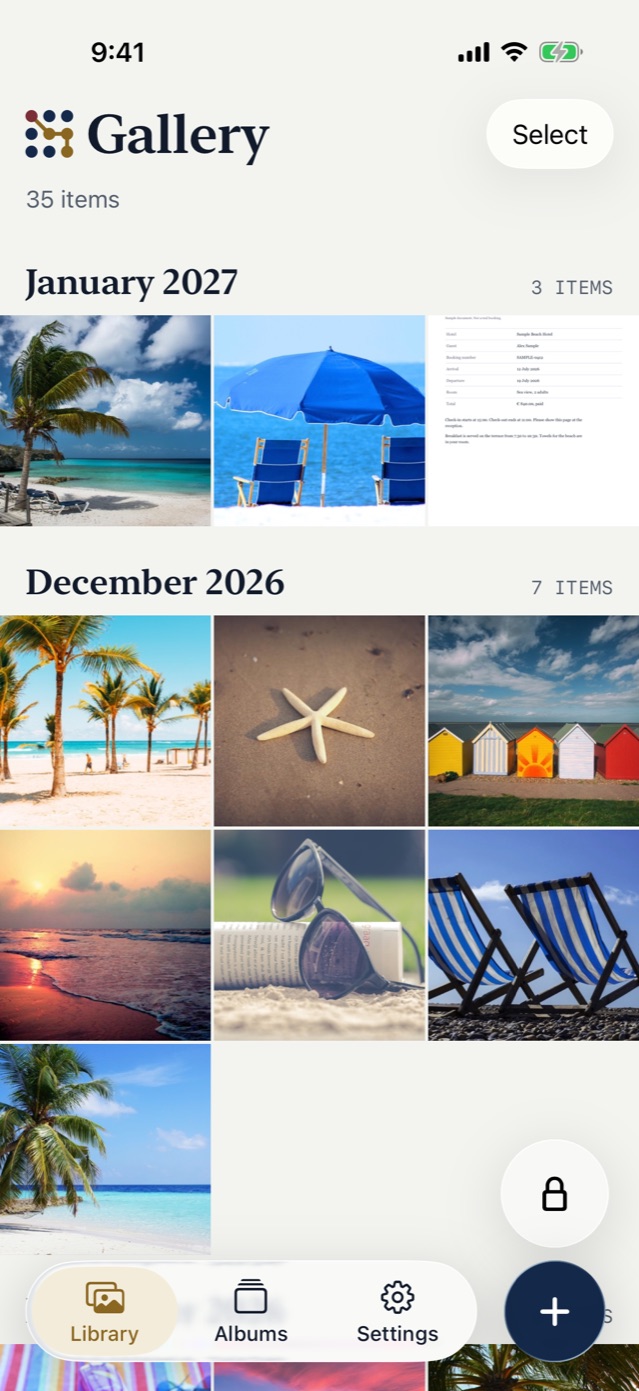
To find hidden photos on your iPhone, open Photos, tap Collections, scroll to Utilities, and tap Hidden. That is the Hidden album. Face ID, Touch ID or your passcode opens it.
The path: Photos, Collections, Utilities, Hidden
- Open Photos.
- Tap Collections.
- Scroll down to Utilities and tap Hidden.
- Tap View Album.
- Unlock the album with Face ID, Touch ID or your passcode.
Your hidden photos and videos are in the grid. To bring one back to the main Library, touch and hold it and tap Unhide.
No Hidden entry? Turn on a switch in Settings
Open Settings, tap Apps, tap Photos, and turn on Show Hidden Album. With the switch off, Apple says that your hidden photos are not visible in the Photos app. With the switch on, the album is back in the list.
If the switch is already on and the photos are still gone, work through the other places to check when hidden photos disappear.
Anyone with your passcode can follow the same steps
The album has no key of its own. Anyone who can unlock your phone can follow the same 5 steps. That includes a partner who knows your passcode, or whose face is set up on the phone. Getting past the lock takes them no extra effort.
Apple also lets you turn the album’s lock off in Settings. If you rely on it, check that yours is still on.
With iCloud Photos on, a photo that you hide on one device is hidden on your other devices too. Are hidden photos saved to iCloud covers what that means.
Take a photo out of the album and into Vault9
Unhide the photo first, because the photo picker in Vault9 does not show the Hidden album. Import it, then delete the original in Photos and again in Recently Deleted. Vault9 never deletes anything in Photos for you.
The vault opens with your pattern or passphrase and your Secret Key, or Face ID if you turn it on. Your phone passcode never opens it. Vault9 does not protect a vault that is open on an unlocked phone.