The Hidden album keeps photos out of your main iPhone library, but it opens with Face ID, Touch ID, or your iPhone passcode. If someone knows that passcode, hiding a photo does not keep it private from them.
That is the key question behind a search for a Vaulty app for iPhone: do you need to prevent accidental discovery, or do you need a separate lock? First verify that the app you found is the one you intended to install. Then compare its lock, backup, and recovery options before moving private files.
Table of Contents
- Confirm Whether Vaulty Is on the App Store
- What the Hidden Album Protects and Where It Stops
- Privacy Features Side by Side
- Recover Your Vault and Avoid the Mistakes That Lose It
- Who Needs a Separate Vault and Who Does Not
- Confirm the Right Option Before You Install
Confirm Whether Vaulty Is on the App Store
Do not treat an old roundup or a similar app name as proof that the product is available for your iPhone. Search the exact name in the App Store and check the publisher on the listing. Search results can include lookalikes, renamed apps, and products from different developers.
The six checks that settle it
Use the same checks for Vaulty or any other vault app.
| Check | Where to look | What to confirm |
|---|---|---|
| Listing | App Store search | The app page opens and the publisher matches the product you want |
| Compatibility | Listing’s compatibility section | Your iPhone and iOS version are supported |
| Data practices | App Privacy label | What data is collected and whether it is linked to you |
| Lock | Description and first-launch setup | Whether it has its own secret or uses the iPhone passcode |
| Recovery | Linked support pages | What happens if the phone or lock is lost |
| Maintenance | Version history and recent reviews | Updates for current iOS versions |
Pay particular attention to the lock. If the iPhone passcode also opens the vault, the app will not keep files private from someone who knows that passcode. Read the privacy label too, especially if it lists identifiers or usage data linked to you.
If the publisher, lock method, or support information is unclear, keep looking. A listing that passes these checks is a candidate, not a guarantee.
What the Hidden Album Protects and Where It Stops
The Hidden album removes items from your everyday photo grid. Apple’s Personal Safety guidance says the album opens with Face ID, Touch ID, or the iPhone passcode. It is useful against casual browsing, but it is not a second secret.
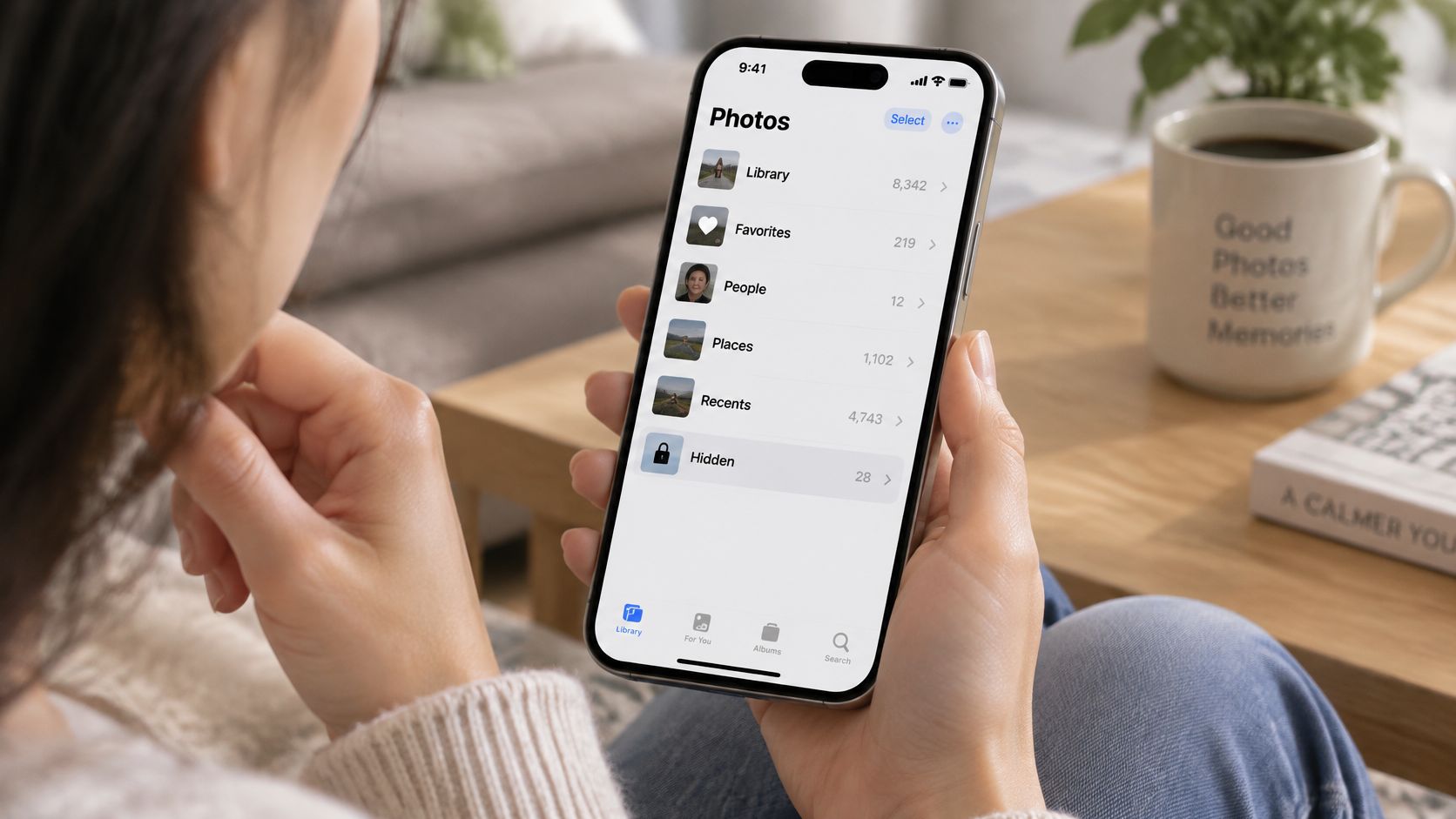
The limit: someone who can unlock your iPhone can also open the Hidden album.
What the iPhone already encrypts and why it isn’t the same thing
Your iPhone already protects stored files. Apple’s Data Protection overview describes hardware-based encryption, per-file keys, the Secure Enclave, and an AES Engine. For iPhones with A14 through A18 chips, Apple describes AES-256 in XTS mode and a new 256-bit per-file key whenever a file is written to flash storage. Setting a passcode enables Data Protection.
That protects data at the device boundary. It does not add a separate lock to selected files once someone can open the phone.
The Notes lock is a real second secret for notes
Notes can lock an individual note with a separate password instead of the device passcode. That works for content kept in Notes, but it is not a private photo gallery, camera, or general file vault.
Three situations where the album fails
-
Someone knows your passcode. They can use it to open the Hidden album.
-
You hand over an unlocked phone. Someone can move from the photo you are showing to your albums.
-
You use a shared device or synced library. Check who can access the device and where your photos appear.
Importing a photo into a vault does not automatically remove its original from Photos. Check the imported copy before deleting the original, then empty Recently Deleted if you do not want that copy left there.
The clip below shows the album screens in practice.
For more on this boundary, see the hidden album versus a photo vault on iPhone.
Privacy Features Side by Side
The relevant comparison is between the Hidden album and a vault with its own lock, such as Vault9.
| Feature | Hidden album | Vault9 |
|---|---|---|
| What opens it | iPhone passcode, Face ID, or Touch ID | Pattern or passphrase with a Secret Key; optional Face ID |
| Lock while phone is unlocked | Accessible with device authentication | Locks when backgrounded, manually locked, or left untouched |
| Encryption | iPhone Data Protection | Files encrypted on the iPhone |
| Backup | Depends on iCloud Photos settings | When enabled, one encrypted copy in your own iCloud storage |
| Recovery | Uses device access | Requires the Secret Key and unlock secret; Vault9 cannot reset either |
The two rows that decide it
Lock independence matters if someone else knows your iPhone passcode. Vault9 uses a separate pattern or passphrase with a Secret Key, or Face ID if you enable it. The iPhone passcode does not open the vault.
Relocking matters when the phone changes hands. Vault9 locks when it goes to the background, when you lock it, or after a period without a touch. Test your chosen app with one file: open it, leave the app, and confirm that returning requires authentication. No lock helps while you are showing someone an already open vault.
What authenticated encryption buys you
Authenticated encryption detects changes to encrypted data before it is displayed. The NIST worked examples for AES-GCM illustrate how AES-GCM combines encryption and authentication. The algorithm alone, however, does not prove that a particular app is secure.
Before committing your files, import a few photos, videos, and documents. Check that they open, that the app relocks, and that any backup finishes. Test recovery before deleting the originals.
Backup is a copy, not a second device
The Hidden album has no separate backup; what happens to its photos depends on your iCloud Photos settings.
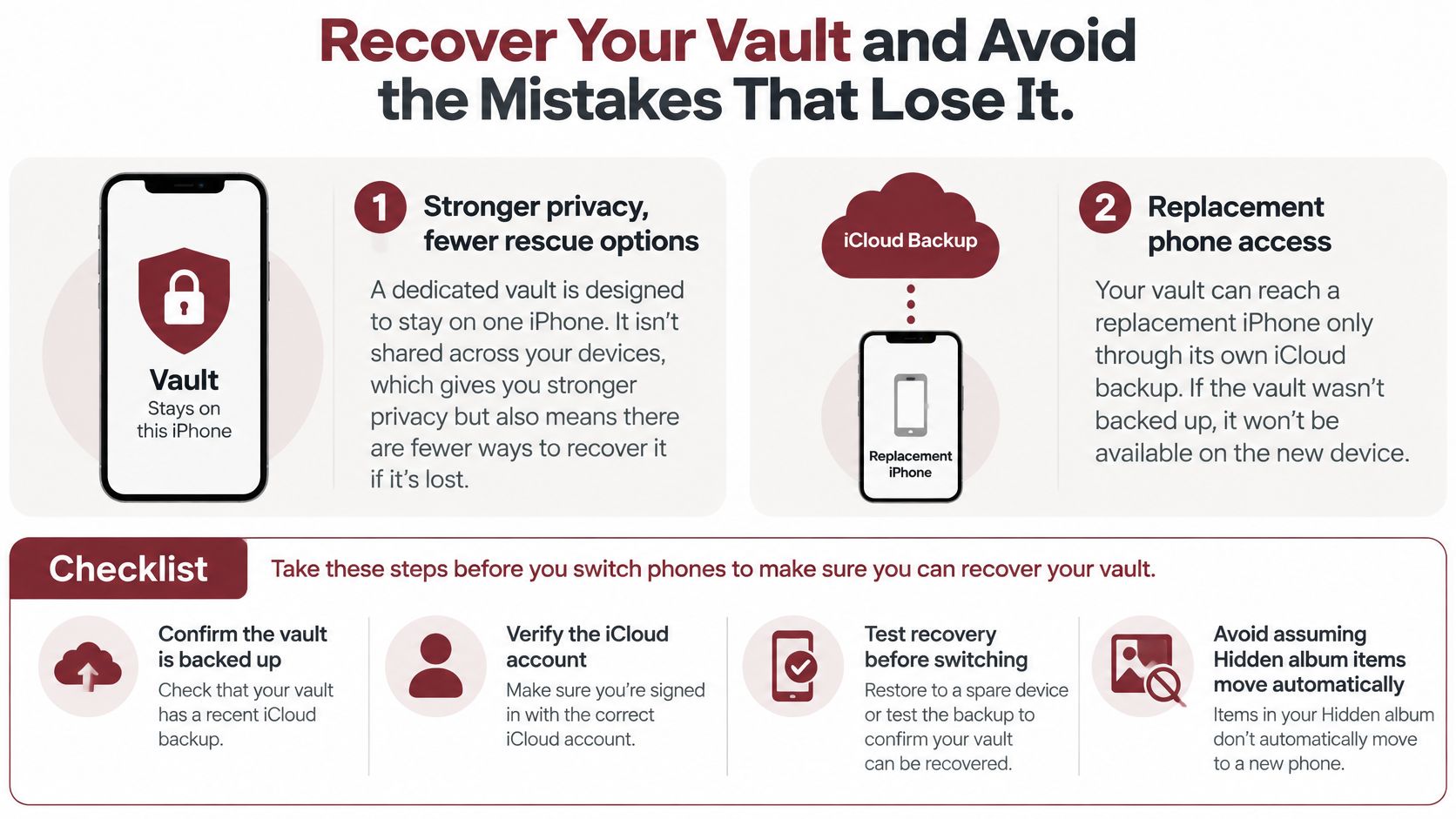
Vault9 keeps files on the iPhone. If you turn on iCloud backup, it stores one encrypted copy in your own iCloud storage, not on a Vault9 server. That copy does not contain the Secret Key. It is the only vault copy outside the phone, and Vault9 is not a guaranteed backup service. Confirm that the backup has finished before relying on it.
For a broader look at encryption and app selection, see whether photo vault apps are safe.
Decision rule: for privacy from someone with your passcode, check the separate lock. For a lost or broken phone, check backup and recovery.
Recover Your Vault and Avoid the Mistakes That Lose It
A lock that the developer cannot reset gives you more control and more responsibility. Vault9 cannot see or recover your files, reset your unlock secret, or replace a lost Secret Key.
The principle also appears in Apple’s guide to Advanced Data Protection: when Apple does not hold the keys to protected data, you must prepare your own recovery method. Do not assume a normal phone transfer will restore access to a separate vault.
The checklist in order
-
Finish the backup first. Confirm it is complete before deleting originals, removing the app, or changing phones.
-
Keep the Emergency Kit somewhere you can reach without this iPhone or iCloud account. Paper or a password manager are possible options.
-
Keep the pattern or passphrase with your recovery information. The Secret Key alone cannot open the vault.
-
Check that both are readable and available. Do this before you need a new phone.
-
To restore on a new iPhone, install Vault9, tap Open from iCloud backup, scan or type the Secret Key from the Emergency Kit, and enter your pattern or passphrase.
Recovery outcomes by what you still have
| Situation | Outcome |
|---|---|
| Phone lost; completed iCloud backup, Secret Key, and unlock secret available | Restore on a new iPhone using the Emergency Kit and unlock secret |
| Emergency Kit lost; vault still opens on the original iPhone | Keep access on that phone, but do not rely on restoring elsewhere without the Secret Key; export important files |
| Unlock secret forgotten but recorded with the kit | Use it to open or restore the vault |
| Unlock secret forgotten and not recorded | Vault9 cannot reset it |
| Phone and Secret Key both lost | The encrypted iCloud copy cannot be opened without the key |
If a new iPhone already has a vault, do not choose which vault to keep casually. Vault9 cannot undo a deletion or reverse that choice. Make sure you understand which copy you are keeping before proceeding.
The mistakes that undo the protection
-
Handing over an open vault. Lock it before handing over the phone.
-
Deleting the app before backup completes. The vault on that iPhone can be lost; an incomplete backup is not a rescue plan.
-
Locking the phone while recording in Vault9. Recording stops, its file is deleted, and the app reports that it was not saved after you next unlock.
-
Leaving originals in Photos. Verify the vault copies, then delete the originals and empty Recently Deleted if appropriate.
-
Keeping only the Secret Key. Restoration also requires the pattern or passphrase.
-
Using a weak or forgotten unlock secret. Choose one you can protect and recover. Vault9 cannot reset it.
For more on that last risk, read the guide to a forgotten photo vault password. Strong encryption cannot compensate for a missing recovery plan.
Who Needs a Separate Vault and Who Does Not
A device lock is common, but it is not file-level privacy. In a May 2023 survey of 5,101 U.S. adults, 83% of smartphone owners reported using at least one device-access security feature, while 16% reported using none, according to Pew Research Center’s data privacy findings. Neither figure tells you whether someone else knows a person’s passcode.
| Situation | Better fit |
|---|---|
| Someone knows your iPhone passcode and should not see selected files | Vault with a separate lock |
| You hand over your phone and want selected items out of Photos | Vault, after checking that originals are removed |
| You need to store sensitive documents alongside photos | Vault that supports those file types |
| You need evidence for a legal or workplace matter | Preserve originals and metadata; keep separate copies and seek appropriate advice |
| You only want fewer photos in the main library | Built-in Hidden album |
A separate vault helps with everyday access control. It is not a guarantee against targeted attacks, forensic examination, or someone with physical access and technical tools.
Short version: if someone who knows your passcode must not reach the files, use a separate lock. If you only need to tidy the library, the Hidden album may be enough.
Confirm the Right Option Before You Install
-
Verify the App Store listing. Check the publisher, compatibility, privacy label, updates, and support pages.
-
Name the risk. Is it a person with your passcode, an unlocked-phone handoff, or a lost device?
-
Test with one file. Import it, leave the app, return, and confirm the lock behaves as expected.
-
Test the recovery plan. Know where the backup, Secret Key, and unlock secret are before moving important files.
-
Check the originals. Confirm the vault copy opens before removing copies from Photos and Recently Deleted.
What happens if the developer stops
Ask whether access depends on the developer’s servers or an account. Vault9 encrypts files on the iPhone and, when backup is enabled, keeps its encrypted copy in your own iCloud storage rather than on a Vault9 server. Even so, continued use and future restoration can depend on app availability and compatibility. Keep any files you cannot afford to lose in another appropriate location too.
For Vault9 questions, contact support@vault9app.com.
Vault9 stores photos, videos, and documents behind a separate unlock secret and encrypts them on your iPhone. If you need privacy from someone who knows your device passcode, Vault9 is an option to test. Start with one file, then confirm both the lock and your recovery plan before moving more.