Type “protect document with password” into a search engine and you’ll get pages of click-by-click steps. Open the file, find the box, type something short, hit save. The file now asks for a password, so the thinking goes, and the thinking stops there.
That ritual hides a difference that matters. A password can scramble the file so nobody reads a word without the secret. Or it can leave the words sitting in plain sight and only ask before someone changes them. You can’t tell which one you got by looking at the dialog box.
People lean on this more than they should. In a July 2024 survey of 810 Americans, 24% said they saved passwords in digital documents, according to HostingAdvice’s password security statistics. Those files travel. They get emailed, copied, previewed, and left on phones that stay unlocked all day.
Here’s the order that works. What the lock does. How to choose a secret that survives a copy. How to apply it to Word and PDF. Where copies escape anyway. And what to do about a phone that’s already open in someone else’s hand.
What a Password Really Hides
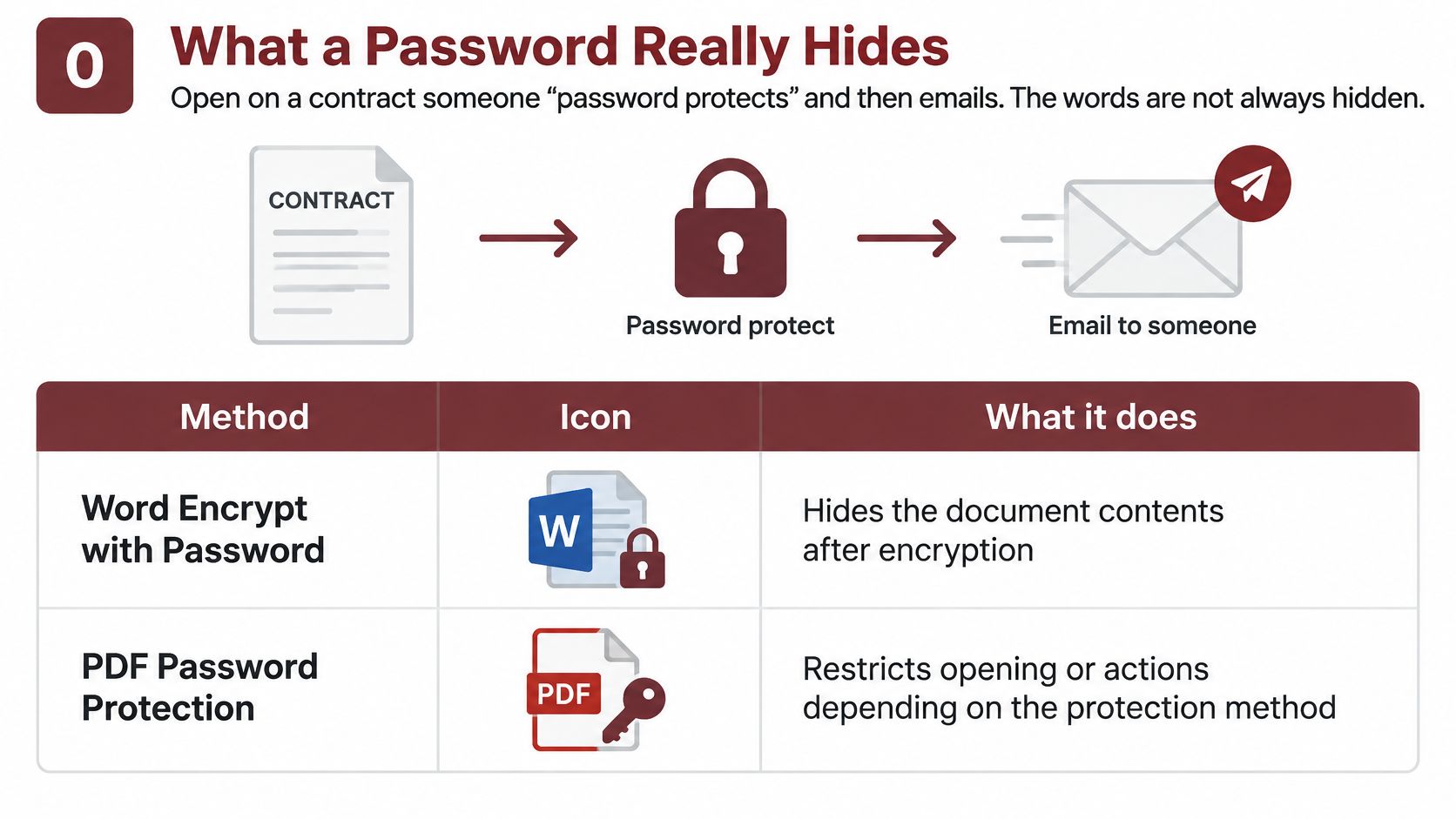
A contract comes back from a supplier with a note. “Protected, password to follow.” You open the attachment, type the password, and read the terms. Fine. Now ask a harder question. If the password had never arrived, could you still have read those words?
Sometimes yes. A prompt can guard the door while the pages behind it stay readable. Use the rows below to match the control to the job.
| Control | Asks for a password | Hides the contents | Typical cipher or limit |
|---|---|---|---|
| Word Encrypt with Password on desktop | Yes, before open | Yes | File encryption; Word Online cannot apply or edit it |
| Word Restrict Editing | Sometimes | No | Limits changes; some sections can stay editable |
| PDF document-open password | Yes, before open | Yes | AES-256 on Acrobat X and PDF 1.7 or later; AES-128 on older PDF 1.6 |
| PDF permissions password | Optional | No | Can block print or edit while pages stay visible |
| iPhone passcode and Photos Hidden | Yes, the phone code | Only while the phone stays locked | Same code opens Hidden |
| Separate encrypted vault | Yes, its own secret | Yes, for the stored copy | Contents stay scrambled without that secret |
Encrypt and Restrict Editing Are Two Different Jobs
Microsoft Word gives you both, and they sit a few inches apart in the menu. Encrypt with Password, on desktop Word, locks the file so it won’t open without the secret. Restrict Editing shows the text, lets you leave chosen sections editable, and limits what people change. Anyone who opens the file can still read it. Microsoft’s guide to protecting a Word document with a password also notes that Word Online can’t password-encrypt a document and can’t edit one that’s already encrypted, so that job needs the desktop app.
PDF Gives You Two Separate Boxes
A PDF can carry a document-open password, which hides the pages until someone types the secret. It can also carry a permissions password, which blocks printing or copying while the pages stay perfectly readable. Turning on the second does nothing for the first. The cipher behind an open password depends on the profile you pick. Acrobat X and PDF 1.7 or later use AES-256. Older Acrobat 7 and PDF 1.6 profiles use AES-128.
Vault9 takes a different approach: it encrypts each stored file on the iPhone with AES-256-GCM, so the stored bytes stay scrambled even when a prompt is weak, skipped, or never set.
A password box is not proof that the file is secret.
Now add the phone. An iPhone passcode locks the phone, and the Hidden album in Photos opens with that same passcode. If someone already knows the phone code, the album is one tap away. A separate vault asks for its own secret. That’s the only row in the table built for the case where the phone is already open.
One test settles what you have. Hand the file to someone who doesn’t have the password. If they can still read it, you limited editing. Then check the copies too, because the lock follows the file you saved, while screenshots, previews, and exports made after opening can travel on their own.
Passphrases That Resist Guessing
Once a PDF leaves your phone, the password stops acting like a login. A login lives on a server that can slow guesses down and lock the account after a few tries. A copied file doesn’t. Whoever holds it can guess at their own speed, offline, with nobody watching.
That single fact should shape the secret you type.
NIST’s password guidance builds strength around length, uniqueness, and guessing resistance rather than symbol rules. It asks systems to block commonly used or compromised secrets, to rate-limit online authentication, and to skip fussy complexity rules, because those rules push people toward predictable workarounds. Longer memorized secrets are generally stronger, and length is the part you control.
How long is long? The NIST Digital Identity Guidelines, updated in SP 800-63B-4 in July 2025, set the bar. Organizations must set a minimum of 15 characters where a password is the only factor, should allow at least 64 characters, and may go down to 8 only when a second factor is present. A file you hand to someone else has no second factor. Treat 15 as a floor.
Four Unrelated Words Beat One Clever Symbol
Random words are easier to remember than a puzzle of symbols, and much harder to guess. Use four or more unrelated words, or a random string from a password manager. You can pull a five-word secret from our passphrase generator if you’d rather not invent one.
Three habits undo a good passphrase faster than a short one does. A secret built from a name, a birthday, the filename, or a phrase inside the document gives an attacker a head start. A reused email, bank, or phone password hands them a key they may already hold. And a familiar word dressed up with a capital letter and a trailing number is exactly the pattern guessing tools try first.
Reuse Turns One Breach Into Several
Verizon’s 2025 Data Breach Investigations Report analyzed 22,052 security incidents and 12,195 confirmed breaches across 139 countries. Credential abuse was an initial access vector in 22% of breaches. And in the median case, only 49% of a user’s passwords were unique across services, which means more than half were reused somewhere else.
Practical rule: if you can’t say the passphrase out loud on a phone call without spelling it, pick a different one.
Four failures open a protected document without touching the encryption. A short secret. A reused secret. A secret sent in the same email as the file. A secret that lives only in one person’s memory, with no record anywhere. AES-256 scrambles the file, but it can’t rescue a guessable key.
How to Encrypt a Word File and a PDF
Two files, one path. Say you’re sending a tax return PDF and a one-page Word letter to an accountant. The steps have the same shape for both, and each one has a reason attached.
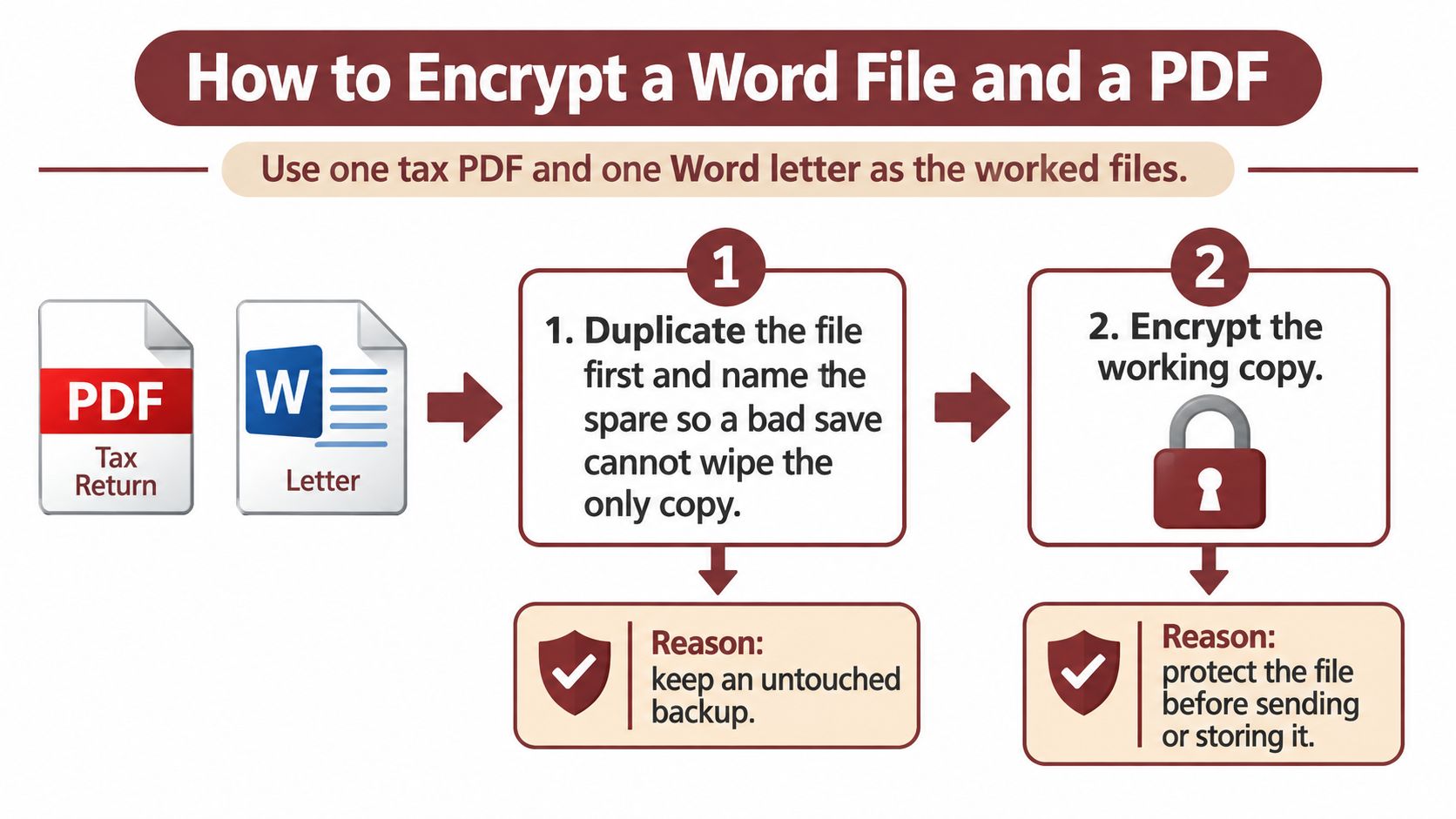
- Copy the file before you touch it. Save a spare named something obvious, like
tax-2024-spare.pdf, and leave it unencrypted in a folder you trust. Reason: a bad save or a forgotten password can’t wipe your only copy. - Open the working copy in desktop Word. Go to File, then Info, then Protect Document, then Encrypt with Password. Reason: this is the setting that encrypts the file. Restrict Editing isn’t.
- Type the passphrase twice and save. Don’t stop when the file looks locked. Reason: only the save applies the encryption to the bytes on disk.
- Quit Word completely, reopen the file, and try a wrong password first. Reason: the wrong password must fail. If it opens the file, you protected a different copy or only set editing restrictions.
- For the PDF, turn on the document-open password. Adobe’s guide to securing PDFs with passwords separates document-opening encryption from permissions controls, and restricting print or edit doesn’t necessarily stop anyone from viewing the pages.
- Choose the Acrobat X or PDF 1.7 or later profile. Reason: that profile uses AES-256, while the older Acrobat 7 and PDF 1.6 profiles use AES-128.
- Save, close, and open the PDF in a second viewer or a private window. Reason: a fresh viewer can’t lean on a cached session from the first one.
- Try a wrong password, then the right one, and check the file’s security properties. Reason: the properties tell you which method was applied.
- Send the passphrase on a different channel. A phone call, or a password-manager share. Never the same email or chat as the attachment. Also confirm the recipient’s software can open the PDF version you chose, because a profile newer than their viewer makes a correctly encrypted file impossible to open.
What a Failure Looks Like
If the wrong password still opens the file, one of two things happened. The protection was never applied, or you only set permissions. That’s the signal that the encryption didn’t land, or that a different file went out.
Write a short handoff note for anything you protect. Who may receive the secret, how you check that it’s really them, and where the spare copy lives. Three lines is enough, and it stops the “what was the password again” email that usually follows.
Before you save: no app can open an encrypted Word or PDF file without its password. Put the passphrase in your password manager first. There is no reset link for a document.
Copies That Stay Readable Anyway
The lock sits on the file you saved. It doesn’t travel with what happens next.
Follow that tax PDF after your accountant opens it. They screenshot page two because it’s quicker than scrolling. They export a clean copy to forward to a colleague. They select a paragraph and paste it into an email. Each of those is now a new document with no password on it at all. Nobody did anything wrong, and nobody broke your encryption.
Other copies appear without anyone deciding to make one. Your mail app keeps the attachment in Sent. A cloud drive shows a preview of the first page to anyone who has the link. On an iPhone, Files and Downloads can hold a second copy, and a deleted screenshot sits in Recently Deleted until it’s emptied there under Utilities. A share sheet can write a temporary file while another app reads the document.
Encryption still does its job. The Cybersecurity and Infrastructure Security Agency explains that encryption protects data stored on devices, servers, and cloud platforms, and recommends encrypting sensitive data both at rest and in transit. It also warns that encryption may not hide metadata. The author name and creation date can stay visible. Check those fields before a sensitive file goes out.
| Place | What can remain | What to do |
|---|---|---|
| Screenshot or photo of the screen | A readable page image | Don’t leave it in Photos; delete it and empty Recently Deleted |
| Exported or printed copy | A file with no password | Treat it as a new document and encrypt it again if you must keep it |
| Same email or chat as the file | Both the file and the secret | Send the secret on a different channel |
| Cloud preview | A first-page preview | Skip preview links for private files |
| Photos Recently Deleted | A deleted copy until emptied | Empty it yourself under Utilities |
| File properties | Author and creation date | Remove identifying fields before sending |
| Share-sheet temporary file | A short-lived decrypted copy | Close the share sheet so the temp file is removed |
When a Vault9 document is exported to another app, the app decrypts it to a temporary file for the share sheet and deletes that temporary file when the share sheet closes. Cancel the share and nothing is left behind. The encrypted iCloud backup covers the copy that leaves the device.
Work the table as a cleanup list after you send anything private. Then keep at least one other copy of each important file in a different place, because a single locked document with no spare is one lost phone away from gone.
Keep Sensitive Files Behind a Vault Lock
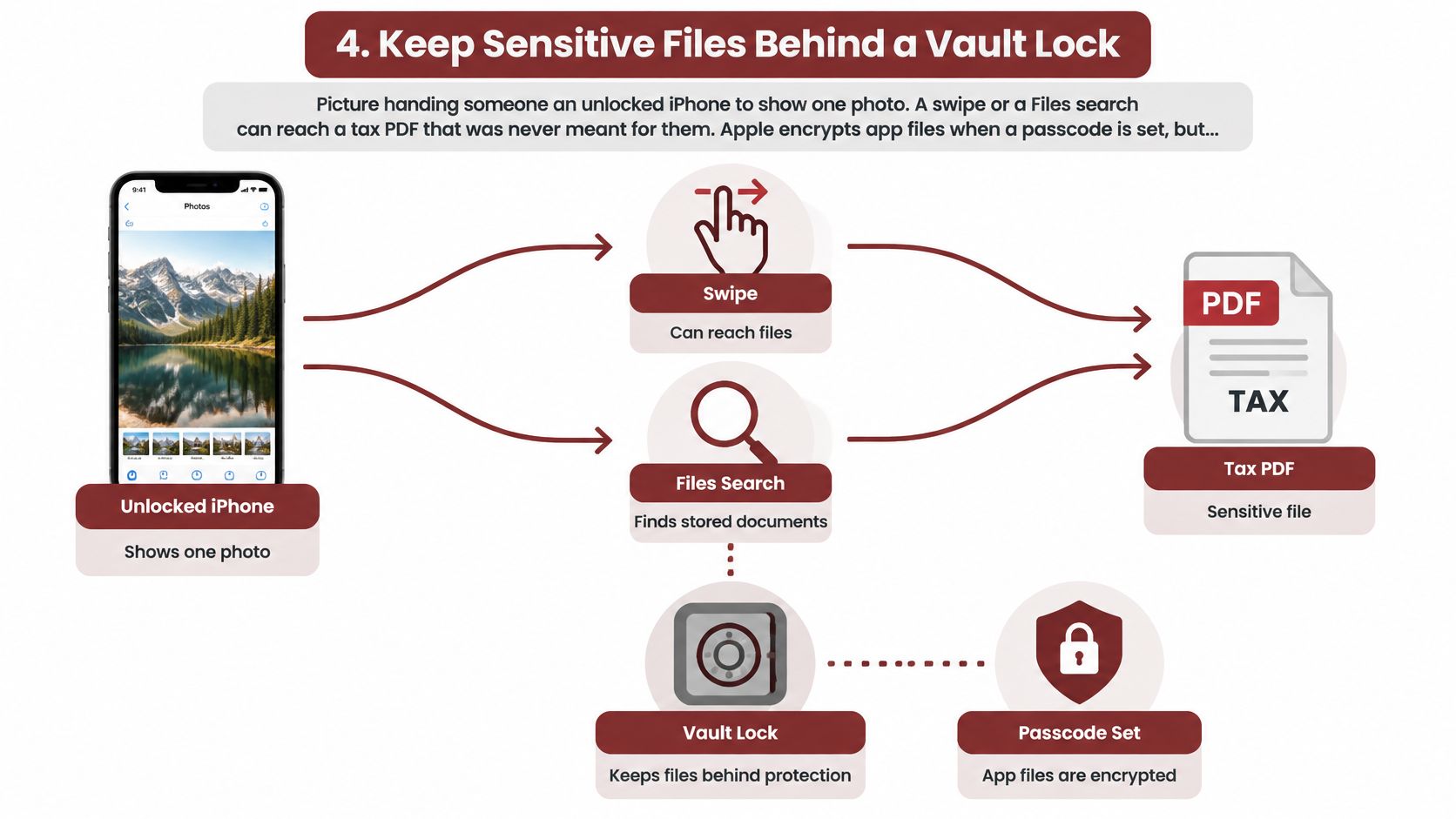
You hand your iPhone to a colleague to show one photo from a launch party. They swipe. Now they’re in the camera roll, then in Files, then typing “tax” into search. Nothing about that is malice. It’s a phone that remains open for hours.
Apple’s built-in protection is real, but conditional. Apple’s documentation on encrypting app files says iOS Data Protection encrypts app files automatically once an active device passcode is set, and it defines four protection levels. The strongest, Complete Protection, makes a file accessible only while the iPhone is in active use. Another level keeps a file sealed only until the first access after a restart, which means some files stay readable for the rest of the day.
The Phone Code Isn’t a Second Lock
A passcode protects the phone from someone who doesn’t have it. It does very little once the phone is open in someone else’s hand. Files opens with that code. So does your email. So does the album you assumed was hidden.
A vault lock works differently because it’s a separate secret, asked for at a separate moment. Vault9 takes its own pattern or passphrase, which the iPhone passcode doesn’t open, and the vault locks again when you leave the app.
The test that matters: hand the phone over unlocked. Can that person reach the file without a secret you never said out loud?
What the Vault Adds to the File
You choose one secret, a pattern or a passphrase, and you enter it twice while a progress bar walks you through setup. A passphrase needs at least 12 characters, and four or more random words are recommended.
Each file is encrypted on the phone before it’s stored, with AES-256-GCM and a key of its own. The original bytes are kept without conversion, so a PDF you export is the same file you imported. Two keys do the work. Your pattern or passphrase stays in your head. A random Secret Key is made on the iPhone and kept in the Keychain, set to this device only. The vault also stays out of the iPhone backup and out of Quick Start, so a routine phone restore doesn’t bring your private files along.
Set It Up in the Right Order
- Import from Files. PDFs and files of any type go in, encrypted on the spot. Open the preview in the vault before you delete anything.
- Print the Restore Kit. It’s a one-page PDF holding the Secret Key. The app never prints your pattern or passphrase, so you write that on the sheet by hand.
- Store the kit like a passport. On paper in a safe place, in a password manager, or on another device with a different iCloud account. Not in iCloud, Notes, Passwords, or the vault.
- Delete the old copy in Files once the vault preview confirms the import, and keep one spare somewhere else.
If you forget the secret and it isn’t written on the kit, nobody can reset it. The vault’s protection depends on your secret, and no support ticket gets around that.
Vault9 keeps the private PDFs, letters, and photos you’d rather not explain in one encrypted vault on your iPhone, behind a pattern or passphrase your phone code doesn’t open. Every file is scrambled on the device with AES-256-GCM under its own key, and the encrypted backup in your own iCloud covers the day the phone leaves your hand. Start with one document: import it, print the Restore Kit, and see what a real lock feels like at Vault9.