The best pattern password ideas aren’t letters, stars or clever initials. They’re long, unpredictable and private: aim for 12 to 15 dots, several direction changes and nothing derived from your name, a familiar layout or something a watcher could infer. If your lock must withstand someone who has your phone, choose a passphrase of four or more random words instead of a pattern.
The popular advice to draw a memorable shape misses the problem. Other people remember those shapes too. Short paths, symmetry, and recognizable symbols give someone holding your iPhone a useful starting point, especially if they’ve watched you enter the secret.
A stronger drawing also needs the right lock around it. Your private photos shouldn’t become accessible just because someone knows your iPhone passcode. An independent vault credential separates those permissions, but it still needs to resist guessing and observation.
The ideas below range from grid paths and private routes to random-word passphrases and spatial memory techniques. Some are useful memory aids rather than strong credentials by themselves. There’s no finished pattern to copy, because a published example is no longer a private choice. Judge each approach by the same question: could someone who briefly holds your phone work it out?
1. Grid Drawn Pattern (Android-style Unlock Pattern)
A grid pattern is a line drawn through dots. The order is the secret, not just the finished outline. Android popularized this style of access, while a separate iPhone vault can use it as an app-level credential rather than a replacement for the device passcode.
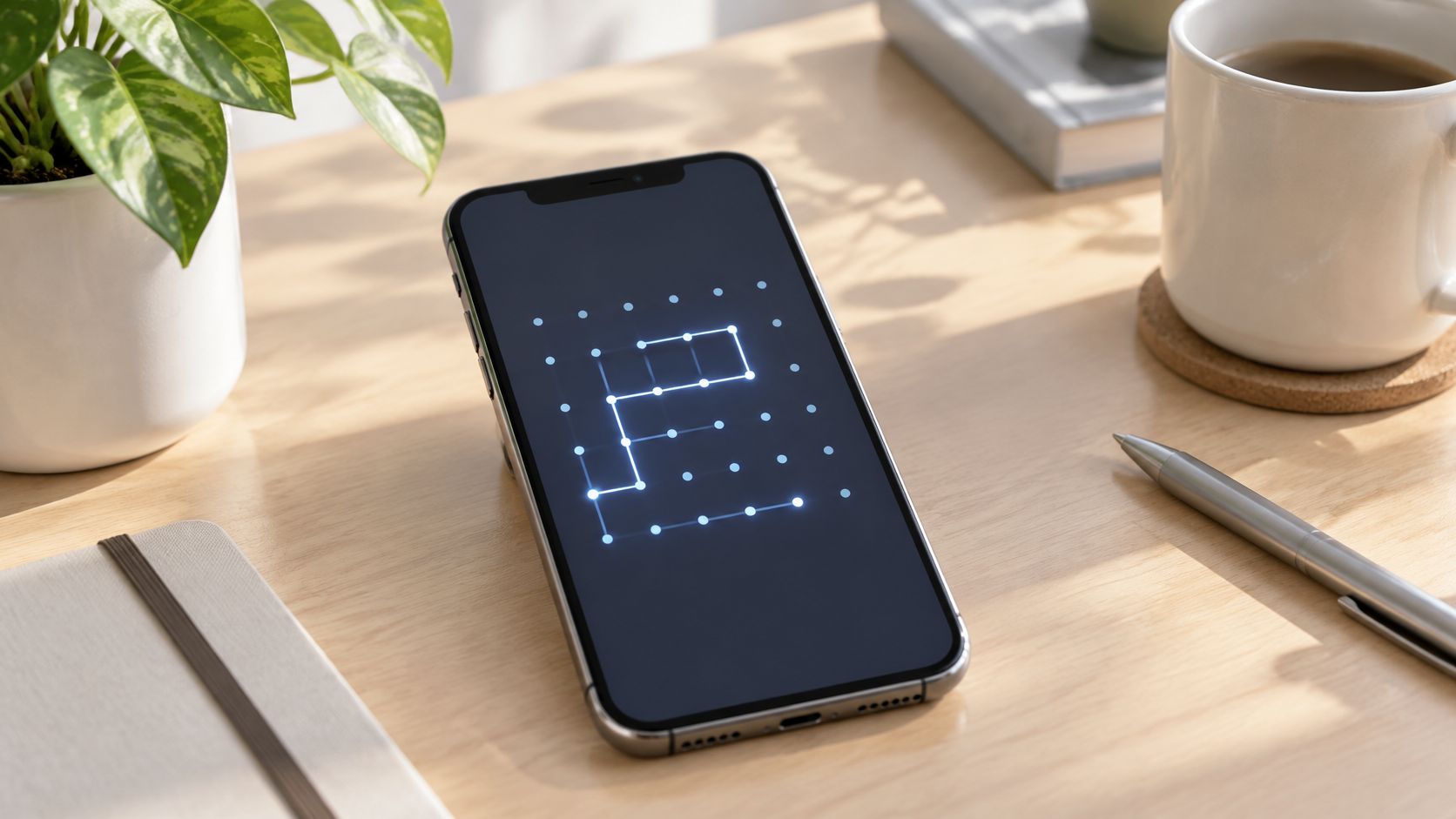
Vault9 uses a 5 × 5 grid, with at least 8 dots and 3 direction changes. Our recommendation is 12 to 15 dots, not merely the minimum. The pattern-lock guide explains the ordered-path approach.
For a practical starting point, build an irregular route across different parts of the grid. Draw slowly during setup, confirm it accurately, then practice until you can reproduce the sequence without staring at its outline.
Where the protection stops
Reject straight edge runs, simple zigzags, symmetry and recognizable letters. Our strength meter flags weak choices, and we reject common patterns including L, Z, S, N and squares around the edge. Wiping the screen can reduce residue, but it doesn’t undo someone watching your hand.
The usual iPhone alternative has a different limitation. Apple’s Hidden album guidance says it opens with Face ID, Touch ID or the device passcode. Hiding its display doesn’t create an independent secret.
Someone who knows your phone passcode can therefore satisfy that authentication requirement. Our vault requires its own pattern or passphrase, even when the phone is already open, and locks when you leave the app. Keep the Emergency Kit safely, because we can’t reset a forgotten pattern.
2. Letter-Shape Pattern
An initial is a good memory cue and a poor secret. If someone knows your name, partner’s name or a nickname, they already have candidates to try. A long drawing that still clearly resembles a letter doesn’t solve that problem.
A Springer chapter on pattern-based authentication describes users’ preference for simple forms such as an L and the exposure of drawing-based schemes to observation and screen-trace attacks. Recognizability matters as much as apparent complexity.
Say you instinctively start with your first initial. Don’t use that initial as the finished credential. Change the starting point, extend the route into unrelated areas and remove the recognizable outline.
Keep the memory cue, discard the outline
-
Break the silhouette. Extra dots don’t help much if someone can still name the letter immediately.
-
Avoid personal clues. Initials, birthdays and familiar symbols give acquaintances a smaller set of guesses.
-
Use the strength meter. Don’t make the smallest possible adjustment to get a rejected letter accepted.
-
Choose words when appropriate. If verbal memory suits you better, use randomly selected words rather than forcing a letter into a drawing.
Our lock rejects common letter patterns outright. Attackers can prioritize the same obvious candidates, so an accepted variation shouldn’t be treated as proof that the underlying idea is strong.
Practical rule: A letter can remind you how you invented a secret. It shouldn’t remain visible in the secret you actually use.
For someone who briefly holds your phone, a recognizable initial is a shortcut. An irregular path removes that shortcut, but a watcher may still learn the movement. Choose a passphrase if that risk matters more than quick entry.
3. Memorable Route Pattern
A route can be easier to recall than an abstract shape because you remember where you go next. The useful version comes from a private memory, not a keyboard row, public map or familiar constellation.
Suppose you remember moving between objects in a private workshop. Assign those stops to scattered grid positions, then follow their order. The mapping should produce an irregular path, not a miniature floor plan someone else could recognize.
The advantage is sequence-based recall. You don’t need to remember what the finished line looks like. You remember the next stop.
The weakness is shared knowledge. A housemate may know your daily route, and a person borrowing your phone may recognize a keyboard sweep immediately.
Make the route private, not merely personal
-
Choose an unshared memory. Avoid your commute, a posted running route or the layout of your current home.
-
Scatter the mapping. Don’t preserve obvious geographic relationships between stops.
-
Test the movement. Draw it repeatedly during setup, then check that you can recall it after a break.
-
Reject regularity. Grid rows, diagonals, perimeter walks and repetitive turns remain predictable, whatever story you attach to them.
Our recommended path length gives you room for a detailed route, but length isn’t a substitute for irregularity. Common outlines still fail the strength check.
A USENIX study of pattern blocklists found that blocking 581 common patterns reduced successful simulated guesses after 30 attempts to 2%, compared with 24% without that defense. That supports avoiding popular sequences, not assuming any private-sounding route is safe.
Someone holding your phone shouldn’t be able to reconstruct the path from what they know about you. If they can, change the mapping or choose another method.
4. Diceware-Style Random Word Passphrase
Randomly selected words are the strongest default here. A Diceware-style method uses dice and a numbered wordlist to choose words without personal preference. You memorize the resulting sequence rather than inventing a phrase that sounds clever.
The important part is the selection process. Picking words yourself from a dictionary isn’t equivalent, because you’ll tend to favor familiar words, themes and combinations.
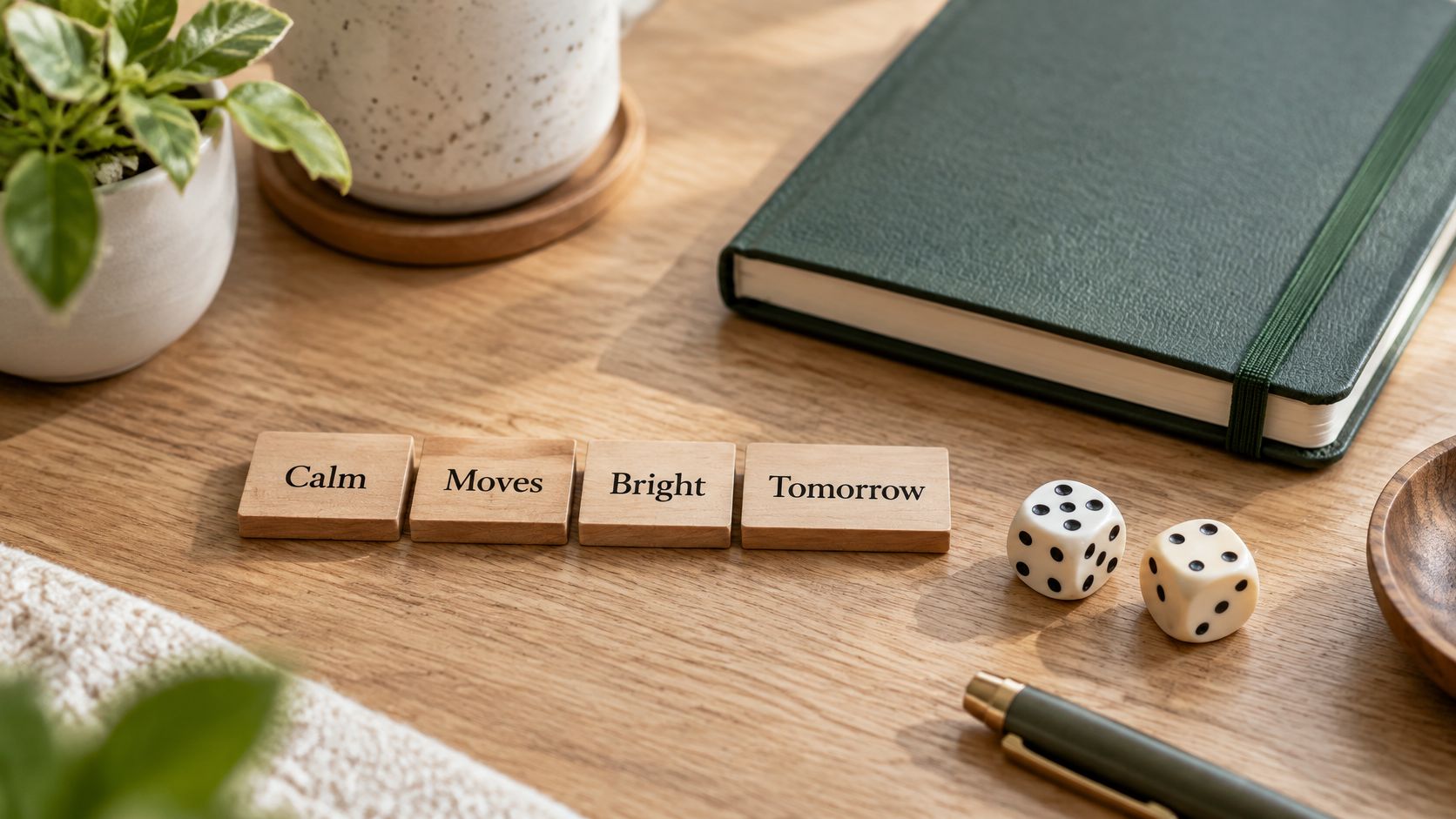
A practical use case is a vault containing sensitive documents that you open privately rather than constantly. Slower typing is an acceptable trade-off when resistance to guessing matters more than one-handed speed.
Our recommendation is four or more random words, and the app can generate a 5-word passphrase. The minimum accepted length is 12 characters, but meeting that minimum doesn’t make a predictable phrase strong.
Preserve the randomness
Use physical dice with a suitable numbered wordlist, or use the app’s generator. Keep the words in their selected order and practice entering the exact spelling and separators you chose.
Don’t replace an awkward word with your pet’s name. Don’t turn the result into a quotation. Those changes reintroduce the personal preferences you were trying to remove.
The encryption guide explains how the memorized credential fits into the vault’s protection. Write your passphrase by hand on the Emergency Kit and store the paper away from your phone.
For someone briefly holding your iPhone, unrelated words offer fewer personal clues than an initial or familiar drawing. They still aren’t observation-proof. Someone who reads the full phrase while you type can learn it, so enter it privately.
Our strength checks reject very common passwords. A familiar slogan padded to the required length is still the wrong choice.
5. Story-Linked Word Passphrase
Start with unrelated words, then invent a story to remember them. Don’t start with a familiar story and extract its words. That distinction separates a useful memory technique from a predictable phrase.
For example, you could picture a lamp floating down a river while a fox carries a ladder. That scene illustrates the technique, not a credential to copy. Select your own words randomly, then build an image that preserves their order.
This works well when you can remember unusual scenes but struggle with disconnected text. The story helps recall; it doesn’t add randomness to words you chose predictably.
A Journal of Cybersecurity study found little relationship between password complexity and memorability, although participants viewed more complex passwords as harder to enter. Don’t assume that an awkward credential is automatically a memorable or useful one.
Keep the story out of your personal history
A holiday anecdote, favorite lyric or family joke is a poor source. Someone close to you may know it, and strangers can try familiar quotations without knowing anything about you.
-
Select first, connect second. Build the story around random words instead of choosing convenient story words.
-
Fix the exact entry. Remember capitalization, spaces and punctuation as part of the credential.
-
Test delayed recall. Come back after a day and enter it without consulting the paper.
-
Protect the backup. Don’t leave the story in Notes or on a card beside your phone.
Our passphrase minimum is a floor, not a recommendation to stop adding strength. Common phrases can be rejected even when they’re long enough.
Someone holding your phone shouldn’t be able to guess the scene from your photos or conversations. If the memory depends on public details about your life, rebuild it around unrelated words.
6. Pattern Plus Secret Key (Two-Factor Lock)
A second key can protect a stolen backup without making everyday access harder. That’s different from asking you to type another code whenever you open the app.
In Vault9, your pattern or passphrase protects access on the iPhone. A random Secret Key, kept in the iPhone Keychain, also contributes to the encryption. The encrypted iCloud backup doesn’t contain that Secret Key, so the memorized credential alone can’t open a stolen backup.
The practical use case is device loss. On a replacement iPhone, you need the encrypted iCloud backup, the Secret Key from your Emergency Kit and your pattern or passphrase. The forgotten vault password guide explains the recovery limits.
Separate backup protection from phone access
This isn’t a second manual challenge against someone holding your existing phone. The iPhone already holds its Secret Key, so a person who learns your pattern may still access the vault there. The extra key doesn’t rescue a weak drawing.
Our lock still rejects common letters, edge squares and common passwords. Choose the memorized secret as carefully as you would without backup protection.
A Secret Key protects copies outside your phone. Private entry protects the secret someone could use on the phone itself.
Print the Restore Kit and store it safely, not in iCloud, Notes or the vault. Run the kit test in Settings every few months, keep iCloud working and let the backup finish.
After restoring on a new iPhone, change your pattern or passphrase. If someone may have seen the kit, change the memorized credential immediately and allow the updated backup to finish.
7. Memory Palace Pattern Mapping
A memory palace gives each grid position a place in an imagined walk. Instead of recalling a line, you recall moving between familiar objects or rooms.
Say you know a childhood home well. Assign selected landmarks to scattered dots, then rehearse a walk through those landmarks in a private order. The grid mapping should be your invention, not a literal drawing of the building.
This differs from tracing a familiar route. You’re using locations as labels for dots, so the resulting sequence can cross the grid unpredictably while remaining meaningful to you.
The trade-off is setup effort. If you must mentally reconstruct every room before each entry, the method is too cumbersome for frequent use.
Practice for reliable entry
Choose enough landmarks to support our recommended 12 to 15 dots. Rehearse the same order until the movement becomes familiar, then test it after you’ve been away from the app.
-
Avoid a literal floor plan. A relative or former housemate might recognize it.
-
Reject tidy room circuits. A perimeter square is still predictable and is rejected by our lock.
-
Keep the mapping private. Don’t save a labeled diagram or explanatory note on a device.
-
Separate recovery from explanation. Record the actual credential on your secured Emergency Kit, not a detailed description of the palace.
Precision matters too. A PassPoints usability study found that tighter click tolerance made graphical authentication harder, especially with intermittent use. Test your real touch movement rather than assuming that remembering the idea guarantees accurate entry.
Someone briefly holding your phone shouldn’t be able to infer your invented mapping. But once they’ve watched the complete movement, the memory palace offers no extra barrier. It’s a recall aid, not protection against observation.
8. Layered Pattern and Phrase Combination
Combining credentials sounds stronger, but only if the lock requires independent secrets. A pattern used as a cue for a phrase isn’t automatically an additional security layer.
For example, someone might mentally associate a private drawing with a randomly generated passphrase. That can help recall, but they still type the phrase to gain access. Publishing or saving the drawing alongside an explanation could expose the cue.

Our lock uses one memorized credential, either a pattern or a passphrase, combined with the Secret Key. It doesn’t offer a daily pattern followed by a separate passphrase challenge. You manage a memorized secret and a recovery kit, not competing access methods.
Don’t create a weaker alternative entrance
If a system lets someone enter either a weak pattern or a strong phrase, they can target the weak option. Keeping a strong phrase elsewhere doesn’t improve the pattern they can guess on your phone.
The same applies to decorative complexity. An initial linked to a favorite quotation gives an acquaintance related clues rather than independent protection. Our checks reject common choices, but you should also avoid less-common credentials built from discoverable personal details.
Choose the stronger lock you’ll actually use. Don’t rely on a complicated memory scheme to compensate for an obvious secret.
Keep credentials unique to the vault. Don’t reuse a drawing from another app or derive a phrase from your device passcode.
Review the credential after a device change or suspected exposure. If you change it, remember that the iCloud backup still uses the previous credential until the update is saved. Update the handwritten entry on your Emergency Kit and let the backup complete before considering the change finished.
Eight lock ideas at a glance
| Type | How you remember it | Strength when done right | Main weakness |
|---|---|---|---|
| Grid Drawn Pattern (Android-style Unlock Pattern) | Recall and draw a path across grid dots | Long, unpredictable paths are harder to guess | Visible traces and shoulder surfing can reveal it |
| Letter-Shape Pattern | Recall a familiar letter, number, or symbol | Extra dots and turns can make it less obvious | Simple, common shapes are easy to guess |
| Memorable Route Pattern | Recall a personal route or sequence of places | A long, private route can be distinctive | Public layouts and shared stories are predictable |
| Diceware-Style Random Word Passphrase | Recall several randomly selected words as a phrase | Truly random words provide strong protection | Hand-picked words are less unpredictable |
| Story-Linked Word Passphrase | Link the words through a vivid mental story | A long phrase can be memorable and strong | Personal stories and famous quotes are guessable |
| Pattern Plus Secret Key (Two-Factor Lock) | Remember a pattern or phrase; the device stores a separate key | A copied backup cannot be opened with the remembered secret alone | Losing both the secret and recovery kit can mean permanent loss |
| Memory Palace Pattern Mapping | Mentally walk through familiar places linked to grid dots | Spatial cues make a personal, long path easier to recall | Setup takes practice; written mappings can be exposed |
| Layered Pattern and Phrase Combination | Use a pattern for access and keep a longer phrase or backup separately | Combines quick access with stronger, separate secrets | Keeping both secrets together defeats the added protection |
Choose the Lock You Will Still Remember in a Year
The right lock is the one you can still enter accurately a year from now, while someone who briefly holds your phone cannot guess it. Pick a pattern for speed when you usually enter it privately. Pick a passphrase when a person holding your phone is the realistic threat: it is the stronger lock, though slower to type. More visual complexity does not always mean better security, especially if you cannot reproduce the result reliably.
A study of Android pattern policies found that some measures improved guessing resistance while reducing later recall. The useful target is a secret that is difficult for someone else to predict and straightforward for you to enter without hesitation.
Make the choice concrete:
-
Pick one method. Use a private grid path, a route or spatial memory aid, or a randomly generated word sequence.
-
Use enough length. A pattern needs at least 8 dots with at least 3 changes of direction; aim for 12 to 15 dots. A passphrase needs at least 12 characters; four or more random words are recommended.
-
Test real recall. Confirm the credential during setup, return after a break and check that you can enter it without reconstructing every step.
-
Write it on the Emergency Kit. Add the exact pattern or passphrase by hand. The app never prints that memorized secret for you.
-
Secure the paper. A kit containing both the Secret Key and your written credential can open the vault for anyone who also has a copy of your files.
-
Finish the backup. Keep iCloud available and wait for the app to confirm that everything is backed up.
If you are unsure of the secret, do not keep testing variations. Reach for the Emergency Kit instead of guessing, because repeated attempts do not rebuild a forgotten credential and there is no reset to fall back on.
Nobody can reset a lost vault secret, including Vault9. If you forget it and it is not written on your Emergency Kit, the vault cannot be opened. The paper backup is part of the lock, not optional administration.
You can switch between a pattern and a passphrase later in Settings. Change your choice when your needs change, such as moving from occasional private viewing to carrying sensitive documents around people who may know your iPhone passcode. Two details matter here: write the new credential on the kit by hand, and remember that the iCloud backup still opens with the old one until the change is saved. Keep the paper somewhere separate from the iPhone.
Vault9 gives your private photos, videos and documents an encrypted vault with a lock separate from your iPhone passcode. Visit Vault9 to choose a private pattern or random-word passphrase, then complete your Emergency Kit before relying on the vault for files you can’t replace.